Creating a Template and Editing a Template are both very similar processes.
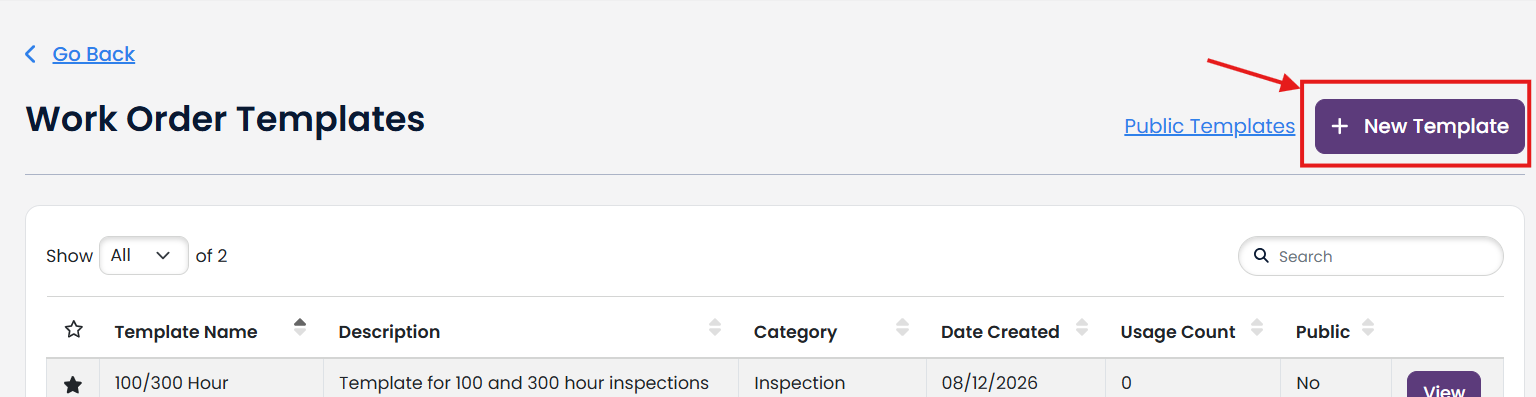
To create a new Template, select the + New Template button
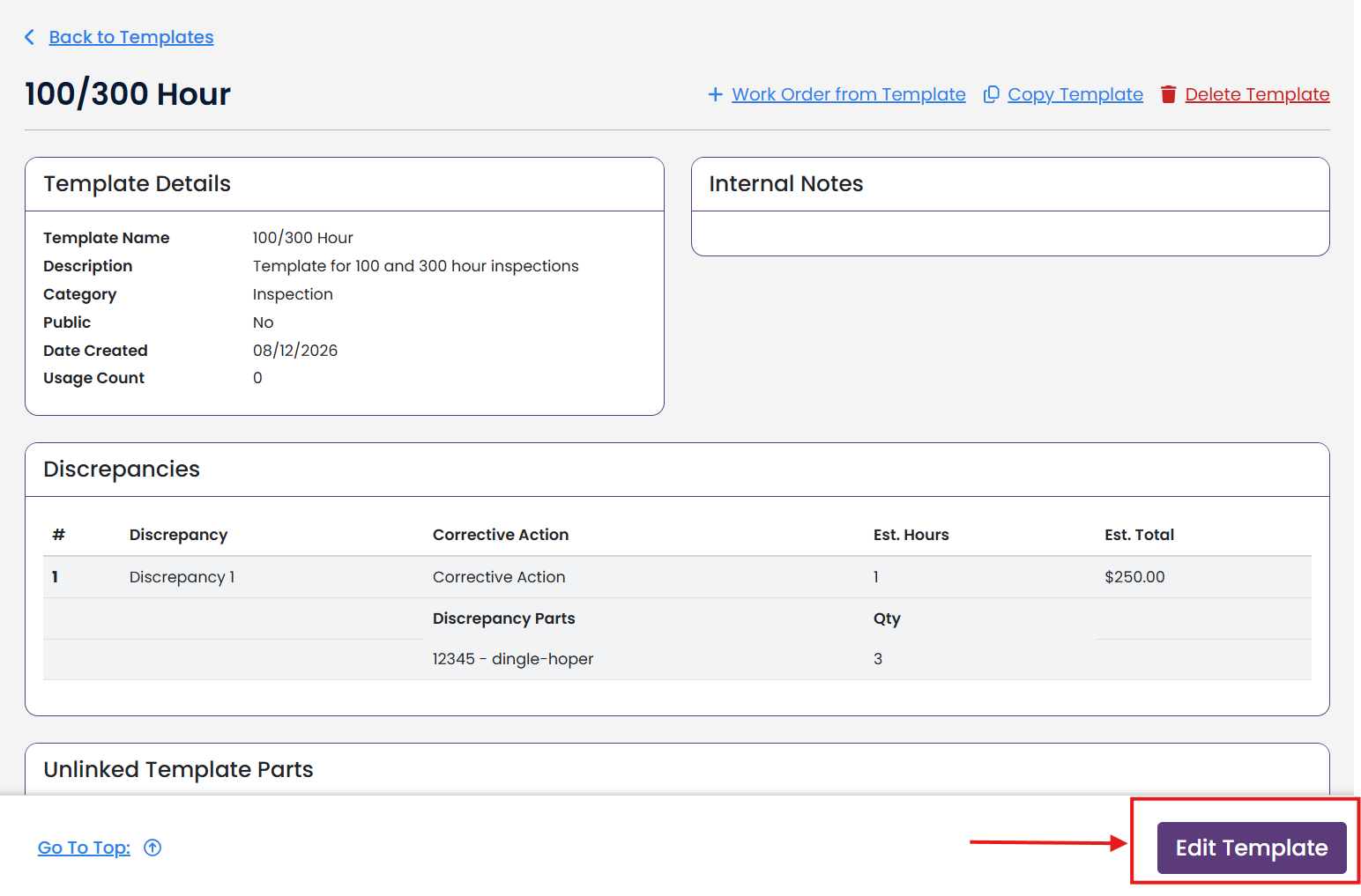
To edit a template, select one of your templates by clicking View. Then, click the Edit button.
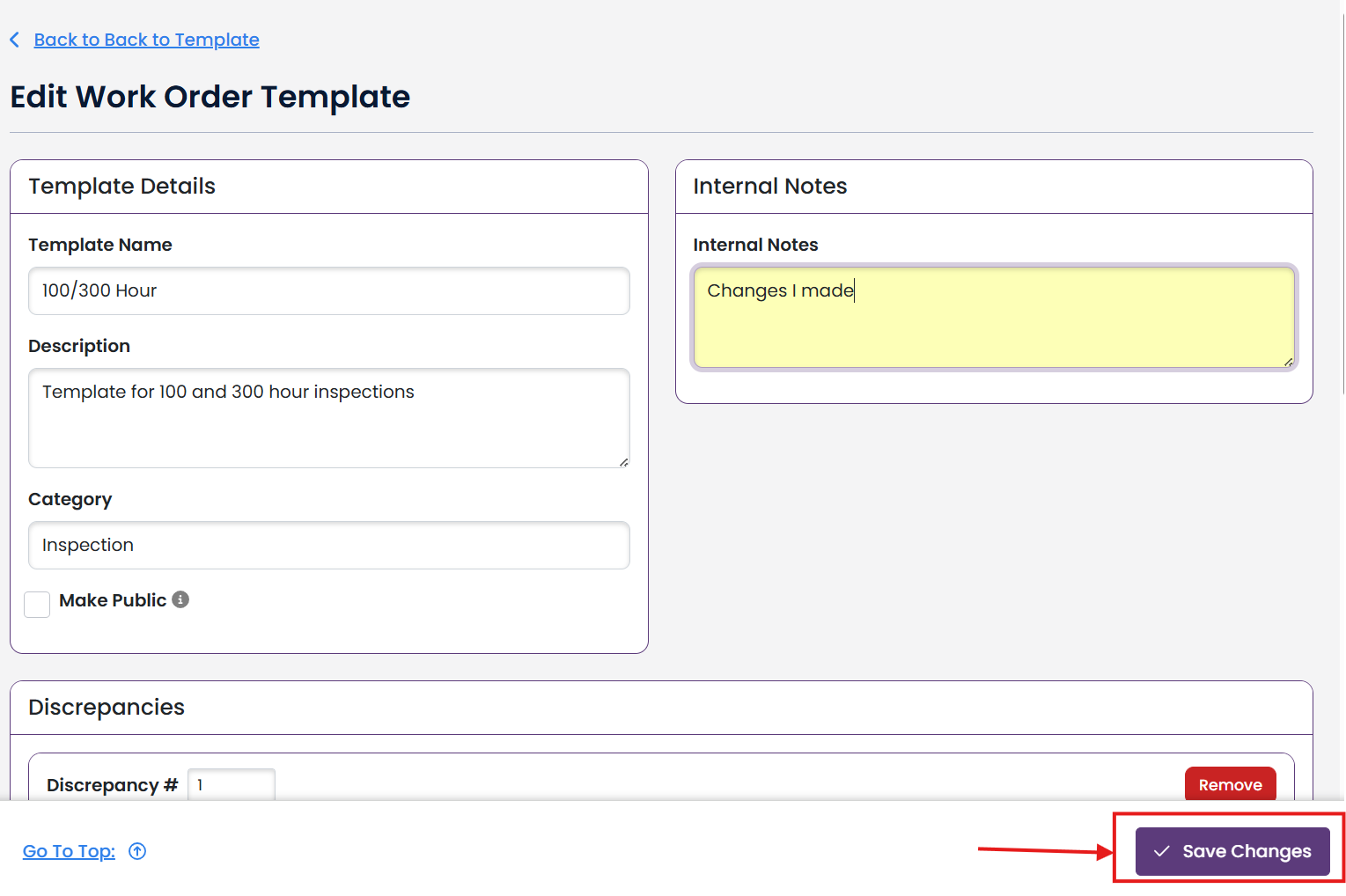
Fill out the Template Details and Internal Notes
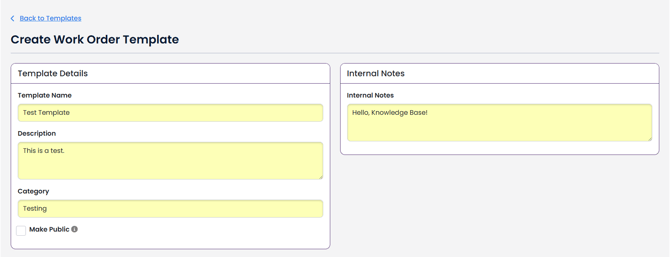
*Note: Consider making your template Public for other TBX users to use! For more information on what information is shared when you make your Template public, go here.
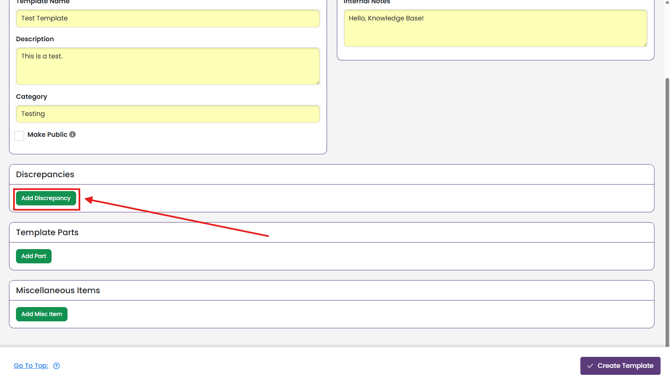
To add new Discrepancies, click Add Discrepancy.
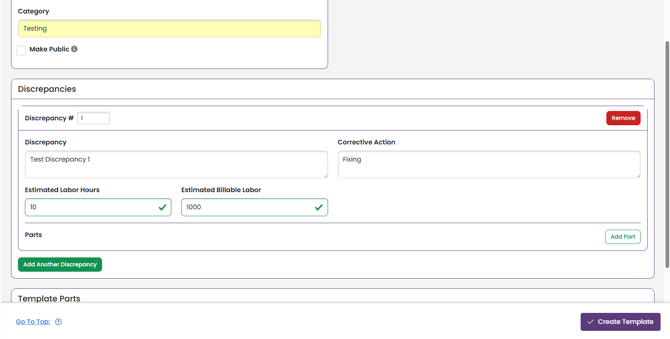
Fill out the fields in the Discrepancy.
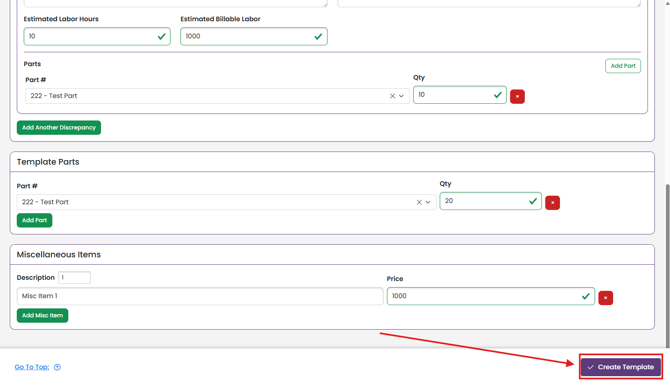
Add parts specifically for your Discrepancy, you can do so by clicking Add Part.
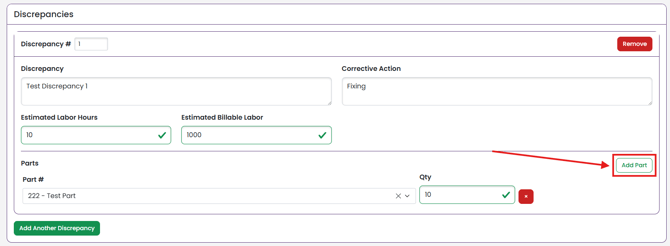
*Note: If you want to add parts just to the Work Order and not a specific Discrepancy, that section is further down the page.
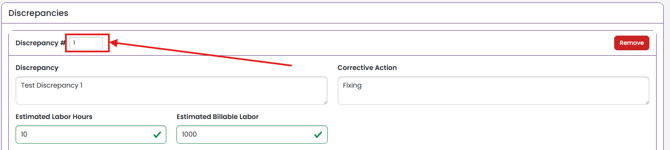
If you have multiple Discrepancies and want to change the sort order, just edit the box next to Discrepancy #.
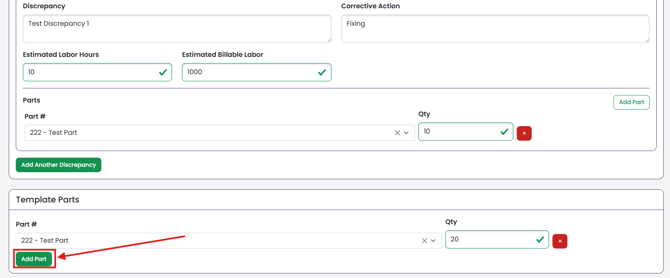
To add a part to the Work Order but not specifically to a Discrepancy, scroll to Template Parts and click Add Part.
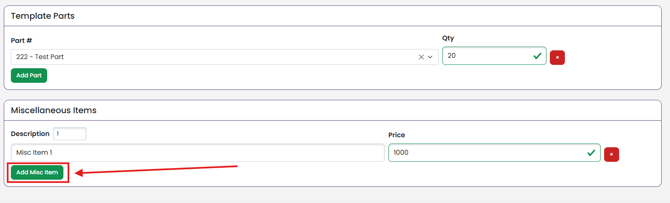
To add a Miscellaneous item, click Add Misc Item.
Once you have everything how you want it, click Create Template or Save Changes at the bottom right.