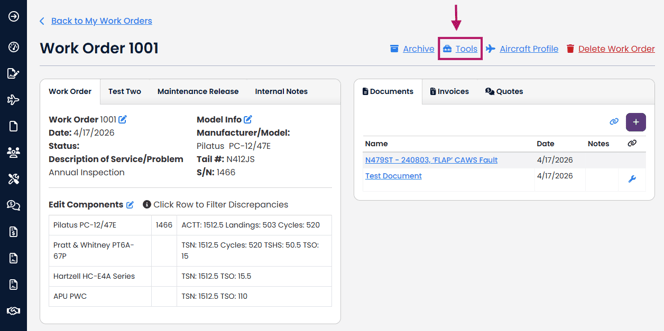
Navigate to the Work Order you would like to convert to an Invoice. Press the Tools button.
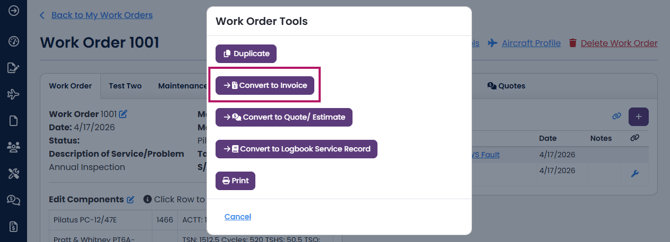
Select Convert to Invoice
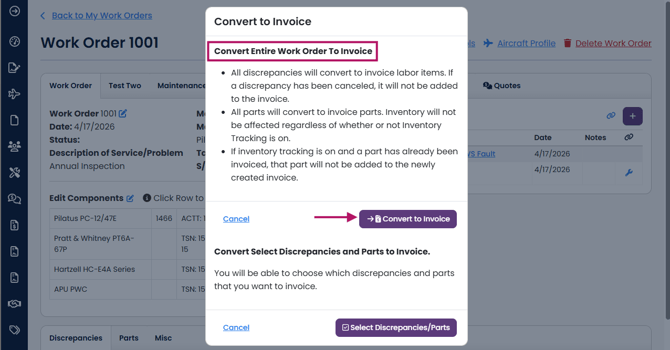
There are two options when converting a Work Order to an Invoice. If you want to convert the entire Work Order to an Invoice, select Convert to Invoice.
- All discrepancies will convert to invoice labor items. If a discrepancy has been canceled, it will not be added to the invoice.
- All parts will convert to invoice parts. Inventory will not be affected regardless of whether or not Inventory Tracking is on.
- If inventory tracking is on and a part has already been invoiced, that part will not be added to the newly created invoice.
- All Labor will be added to your invoice.
- All work order components will be converted to invoice components, along with their times.
- If a work order component was linked to a discrepancy, this relationship will be maintained in the invoice.
If you want to be able to select which discrepancies/parts are converted to an invoice, here's an article on how to do that: Converting a Work Order to an Invoice (Discrepancy Select)
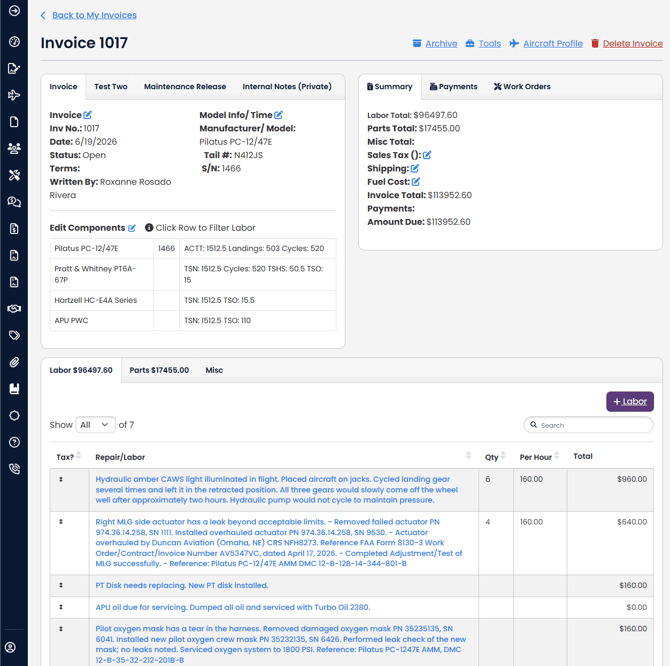
Your invoice has been generated from the work order. Please note, converting a Work Order to an Invoice does NOT change or delete your Work Order or any of its details.