
The View Part page shows everything TBX knows about a single part in your inventory: how many are in stock, what it costs, where it has been received from, which work orders and invoices have used it, and any documents or notes attached to it. You can also edit the part's details and pricing, create an FAA Form 8130-3, or delete the part from here.
Opening the View Part page- In the left menu, go to Parts & Vendors and open Parts.
- Click the part you want to view.
To return to your parts list at any time, click Back to My Parts at the top of the page.
The top of the page shows the part number and part name (for example, "23 Part"), along with two actions:
-
Create Form 8130-3 – starts an FAA Form 8130-3 (Authorized Release Certificate) for this part.
-
Delete Part – removes the part from your inventory. Use this with care; delete only parts you no longer need to track. It is recommended that you make a part inactive.
Part Information
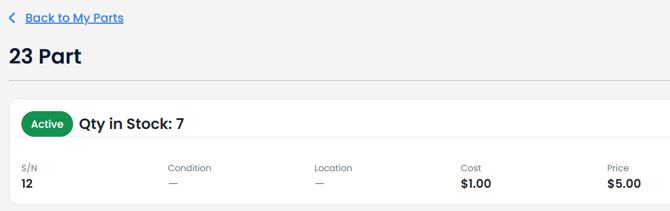
The summary card shows the part's status (for example, Active) and its current Qty in Stock, followed by these details:
- S/N – the serial number
- Condition – the part's condition
- Location – where the part is stored
- Cost – your cost per unit
- Price – the price per unit you charge customers
A dash (—) means the field has not been filled in yet.
Edit Info
Click Edit Info to open the Part Information window.

Here you can update:
- Part #
- Part Name
- S/N
- Alt. Part # (an alternate or superseding part number)
- Location
- Condition (choose from the list or type your own)
- Unit Type (choose from the list or type your own)
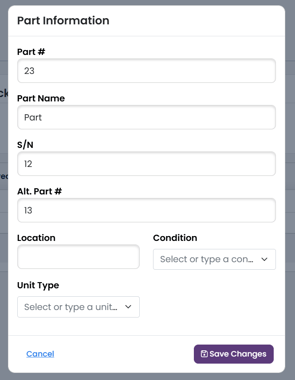
Click Save Changes to keep your edits, or Cancel to close without saving.
Edit Pricing
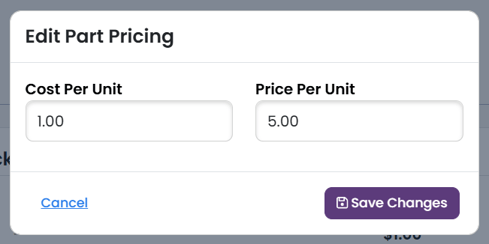
Click Edit Pricing to change the Cost Per Unit and Price Per Unit, then click Save Changes.

Active/ Inactive Part
To make a part Inactive, click the green Active status.
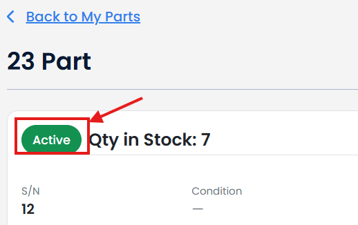
To make a part Active, click the blue Inactive status.
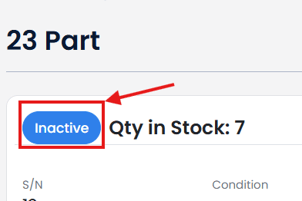
Making a part inactive will retain the part information to preserve the integrity of your inventory tracking butbut will remove the part from selection lists elsewhere in TBX (ie, Work Order Parts).
Tabs
Below the summary are five tabs. The number beside each tab shows how many records it contains. On smaller screens, use the scroll bar under the tabs to reach the ones on the right.
Fulfillment
Lists work orders and invoices that need this part but could not be filled because there was not enough quantity in stock. Each row shows the Work Order/Invoice number and the Quantity Needed.

Click the work order number to open it.
Once you have enough stock, click the icon in the Fulfill column to fill the request from inventory.

Received
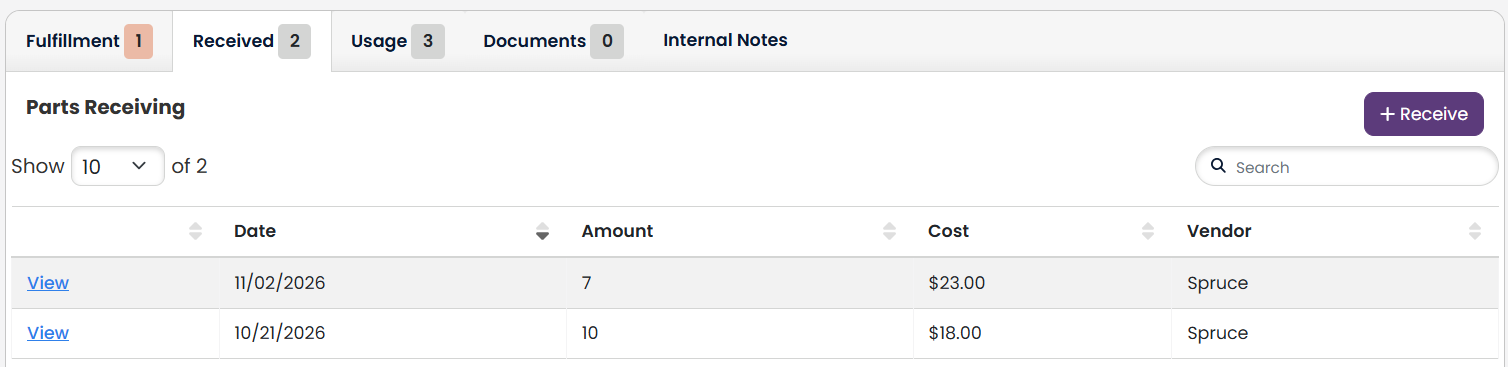
Shows the receiving history for this part. Each row shows the Date, Amount, Cost and Vendor; click View to open the full receiving record. To log a new shipment, click Receive. You can search the list and choose how many rows to show.
Usage
Lists the work orders and invoices that used this part when there was enough quantity in stock to cover it. Each row shows the Work Order/Invoice, Quantity Used, Date Used and Tail Number.
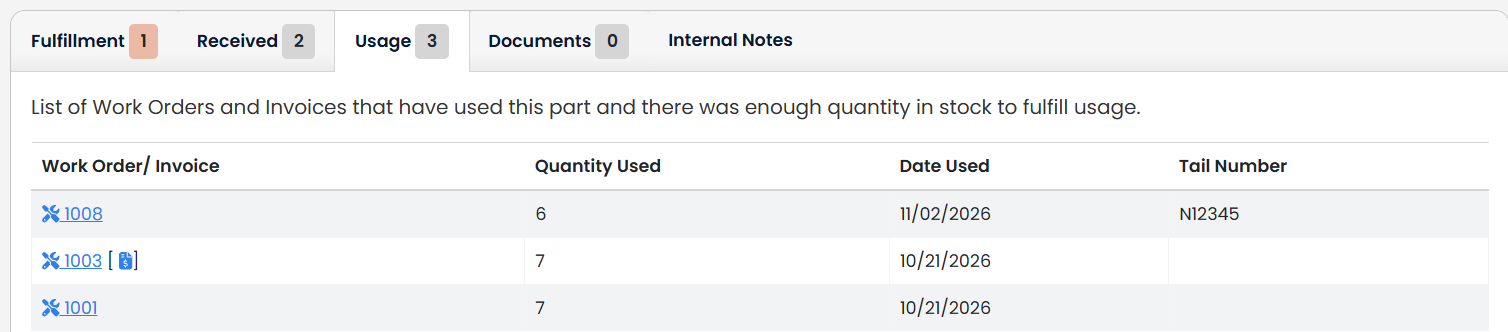
Click a work order number to open the work order.

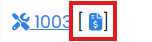
An invoice icon next to a work order number means the work order has been invoiced; click it to open the invoice.
Documents
Stores files and links related to this part, such as certificates, tags or vendor paperwork. Use the icons at the top of the tab to upload a document or add a link to a document stored elsewhere. Documents are listed by Name and Date, and you can search and sort the list.
Internal Notes
Holds private notes about the part for your team. Internal notes are not shown to customers. Click the edit icon to add or change notes.