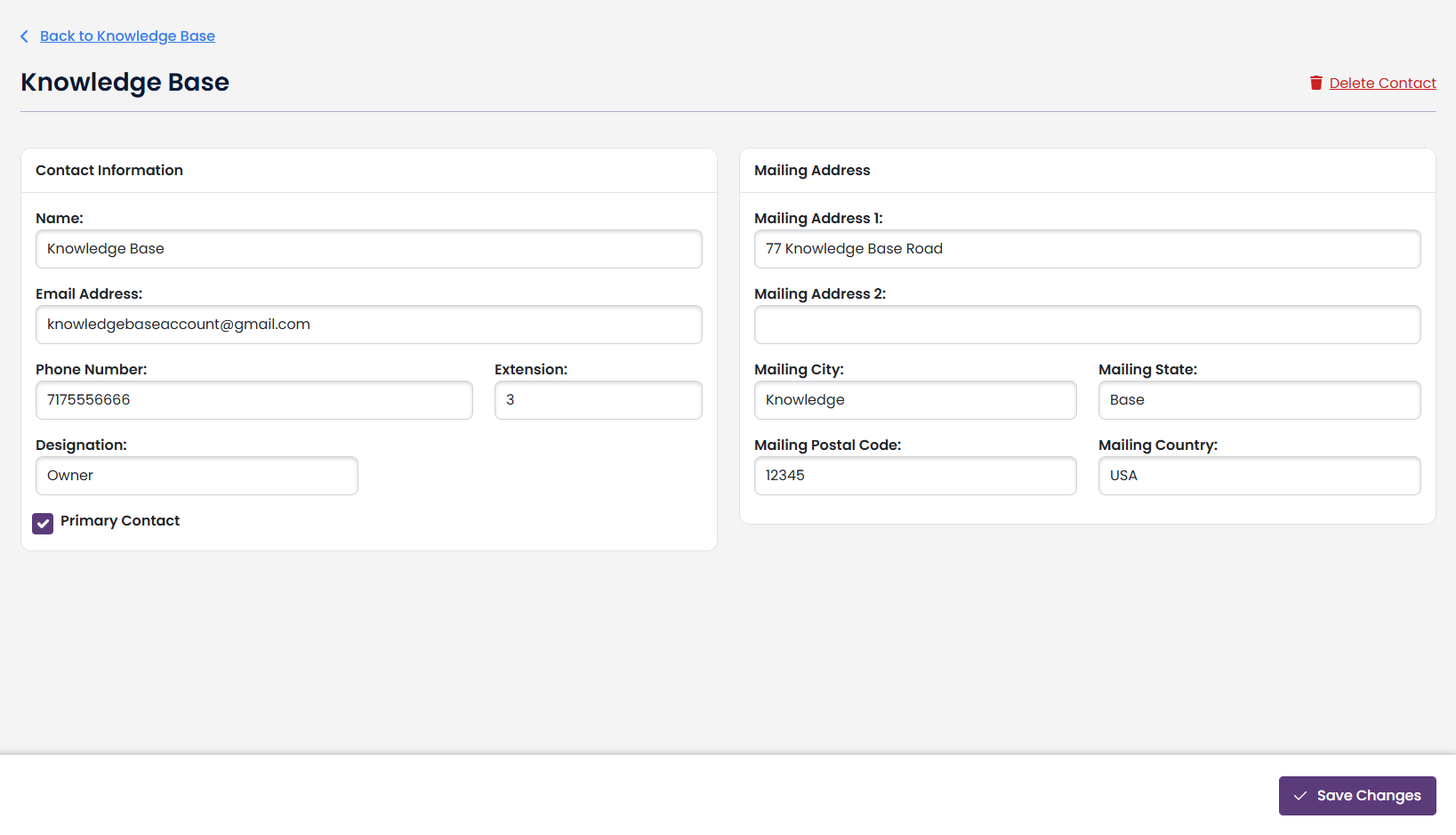
Vendor Contacts offer a convenient way to keep track of who you talk to at your Vendor.
To add one, navigate to the vendors page by clicking Vendors on the left Nav Bar: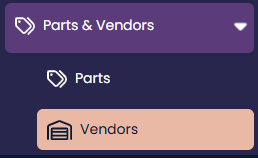
Select one of your Vendors from the table or create one. The Vendor Contacts card will be in the top right of your screen. To create one, press the + button: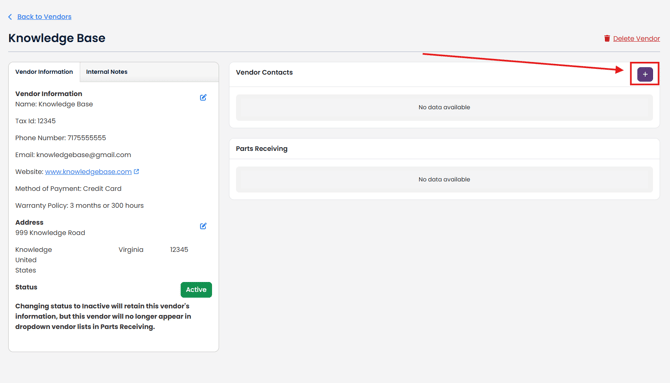
Fill in the fields with your Contact's information, then click Save in the bottom right: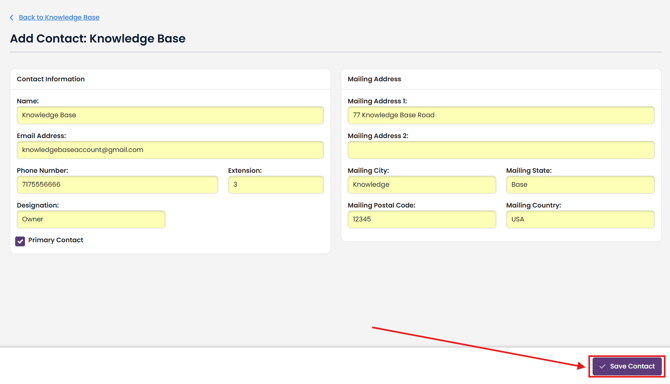
*Note: You can only have one Primary Contact per Vendor.
The Contact will be added to the Vendor Contacts table: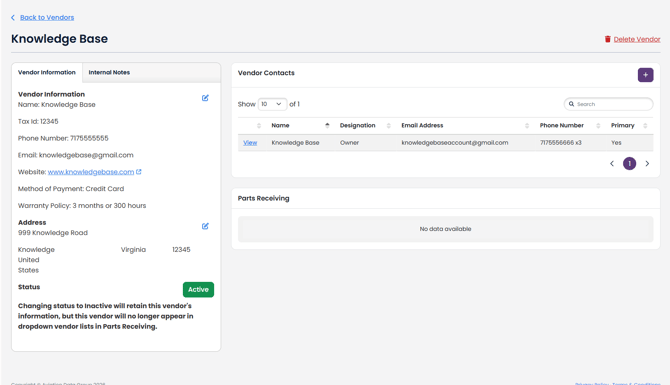
To Edit/View/Delete a Vendor Contact, click on the View button adjacent to the Contact: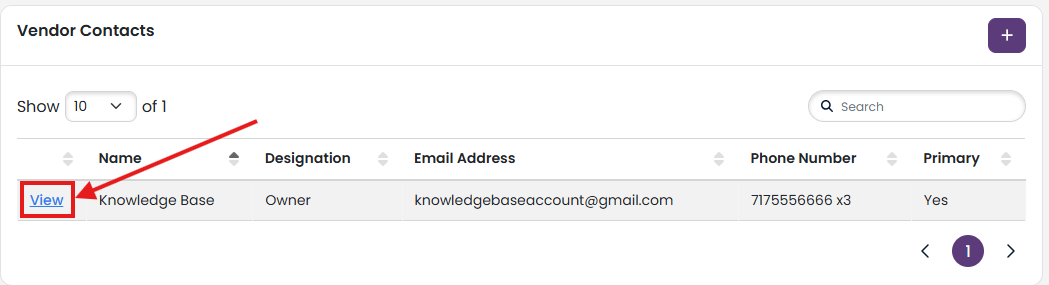
Here you can View the information, Edit it, or Delete the entire contact by clicking the delete button in the top right: