
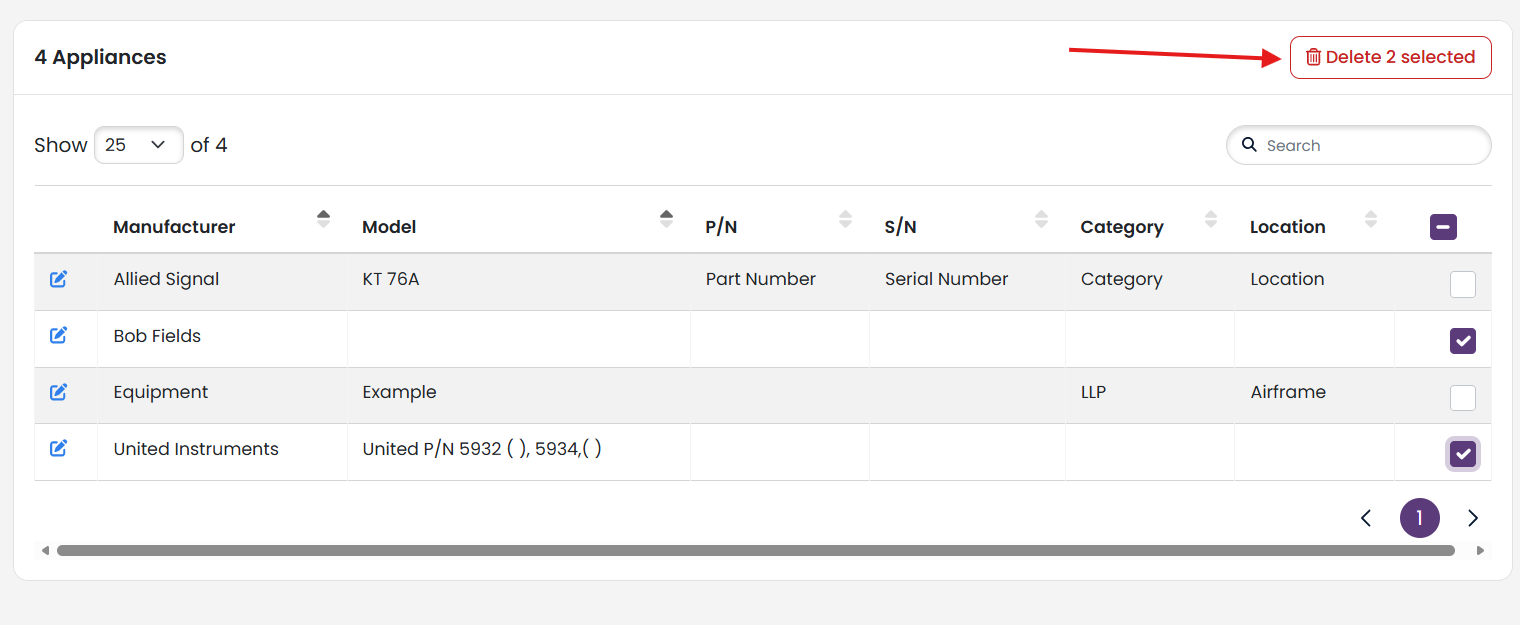
The Report Appliances page lists every appliance on an AD Compliance Report, with its manufacturer, model, P/N, S/N, category, and location. From this page you can print the appliance list and delete multiple appliances at once.
Open the appliance list
Open the AD report on the AD Report Prep page. In the Appliance Info section, click the number next to Appliances. The Report Appliances page opens.

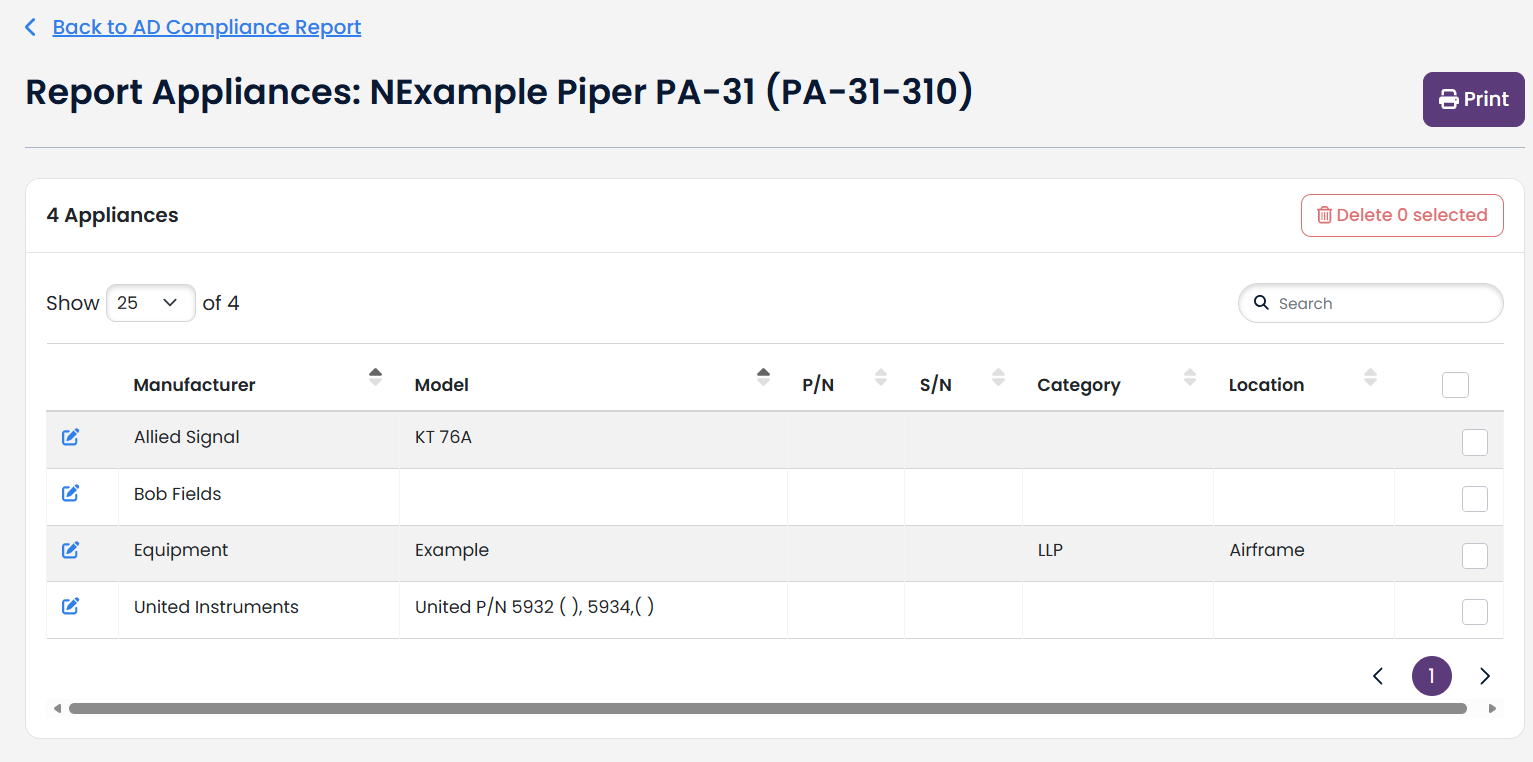
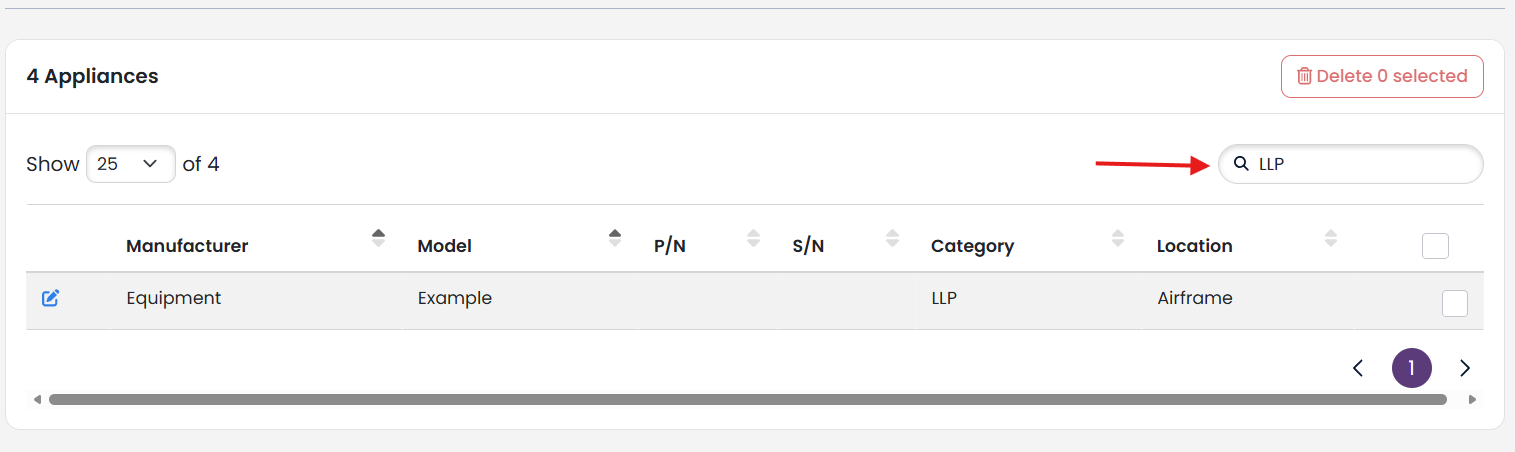
Use the Search box to find a specific appliance
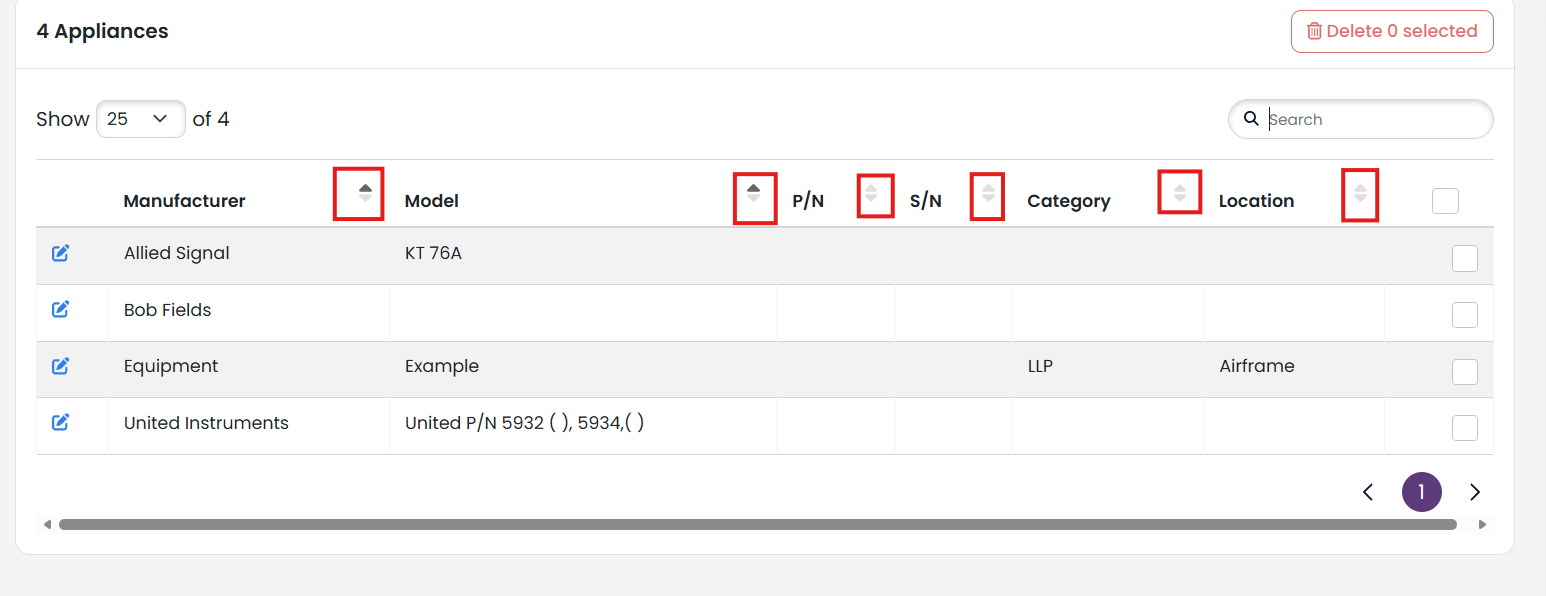
Use the column headers to sort the list.
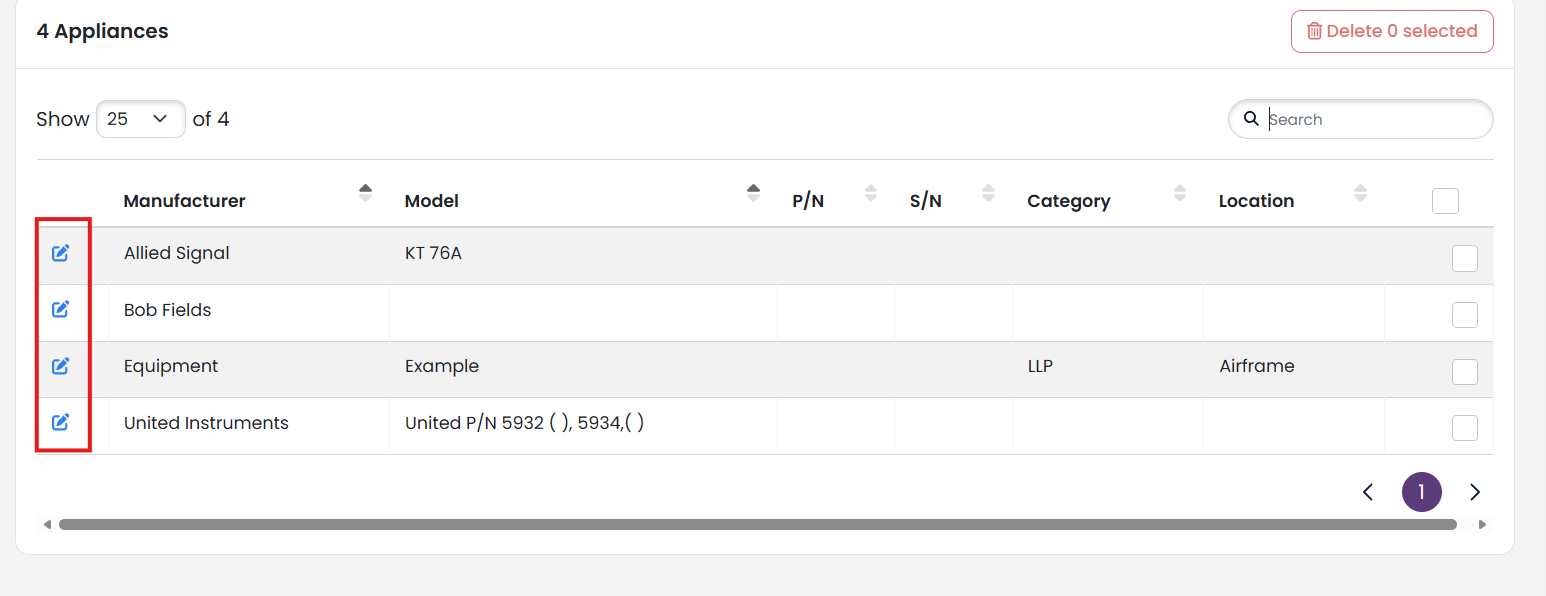
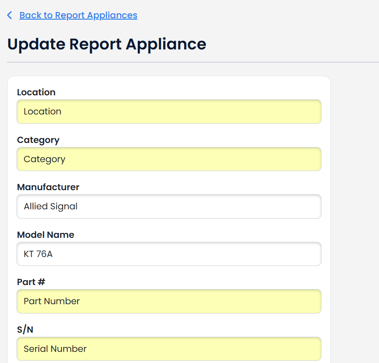
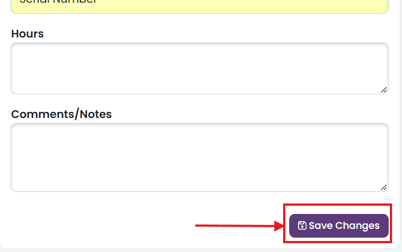
Click the edit icon at the left of a row to edit that appliance.
Print the appliance list
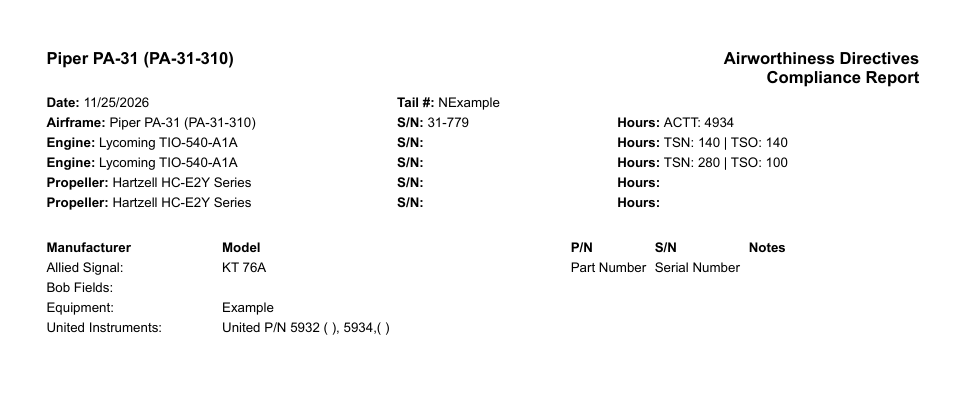
Click the Print button at the top of the page, below the page title, to print the list of appliances on the report.

Delete multiple appliances
1. Check the checkbox at the far right of each appliance you want to delete. To select every appliance, check the box in the table header. You may need to scroll the table to the right to see the checkboxes.
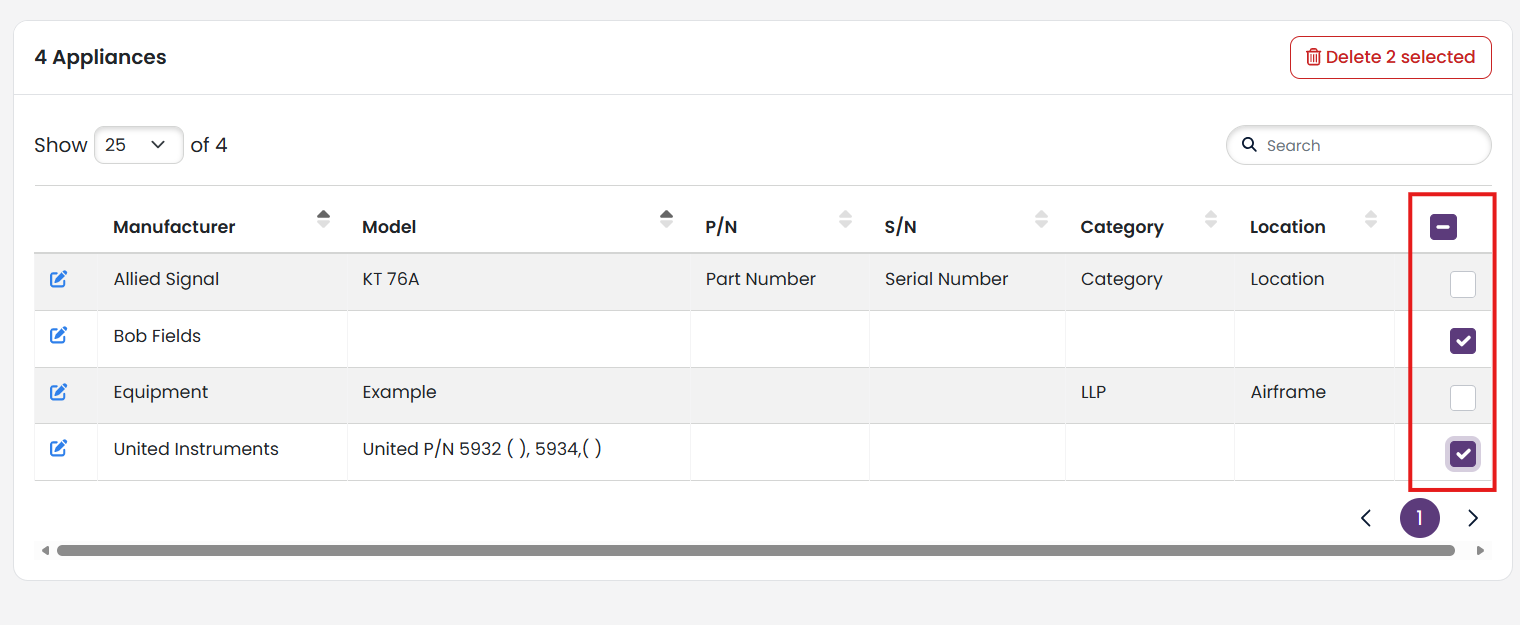
2. Click Delete # selected above the table. The number on the button shows how many appliances you have selected.
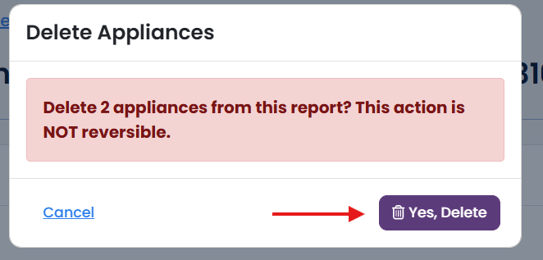
3. A confirmation message asks you to confirm the deletion. Click Yes, Delete to continue, or Cancel to go back. This action cannot be undone.
Note: Deleting an appliance from this list does not delete any appliance ADs from the AD Compliance Report. If you also want to remove the related ADs, delete them from the AD list on the AD Report Prep page.