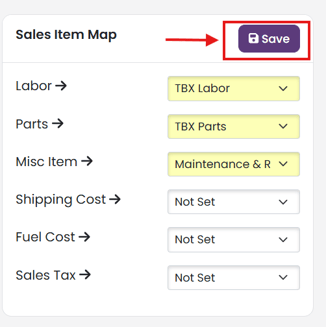
How to map Invoice Sales Items:
- There are 6 categories of invoice items from your TBX Invoice that need to be mapped to a sales item in your Quickbooks Online company: Labor, Parts, Misc Item, Shipping Cost, Fuel Cost, Sales Tax.
- Each invoice category is optional; however, if it is not mapped ("Not Set"), it will be excluded from the invoice export to Quickbooks.
- At least one (1) invoice category must be mapped to be able to export invoices to Quickbooks.
- Quickbooks Online Sales Items must be created first in your Quickbooks Online company before you can map TBX Invoice Categories.
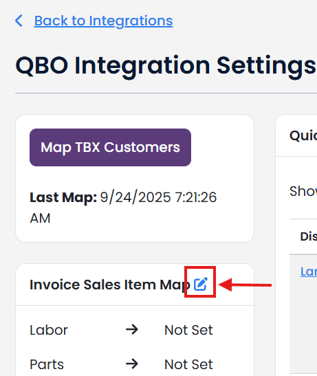
To map TBX Invoice Categories to your Quickbooks Online Sales Items, click the blue pencil icon in the Invoice Sales Item Map box on the QBO Integrations Setting page.
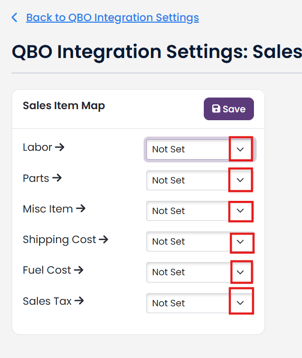
For each category, select the Quickbooks Sales Item from the dropdown list
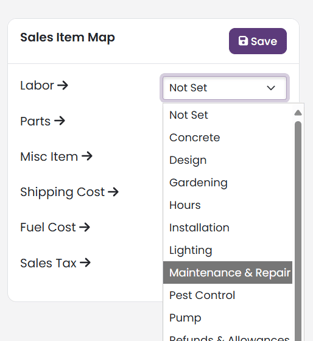
For any category that you do not want to export with the Invoice to Quickbooks, you can leave the dropdown at "Not Set".
Once you have completed your selections, click the purple "Save" button.