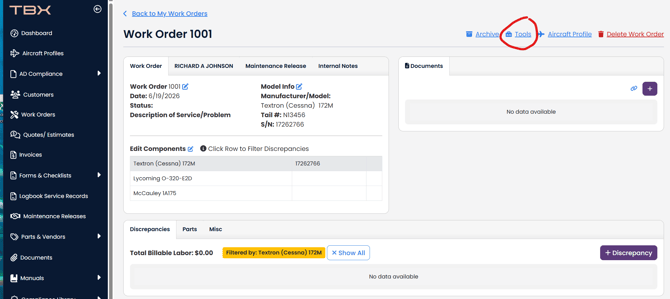
- Navigate to the Tools button in the top right of the screen.
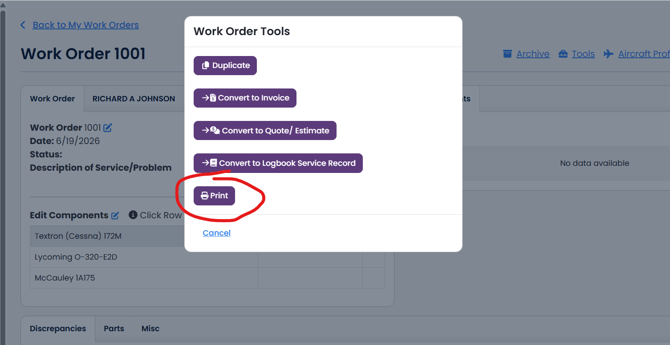
- In the Tools modal, select the Print button.
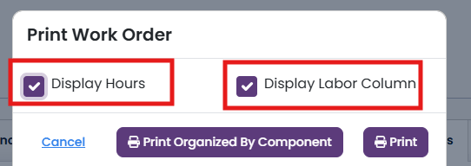
In the Print Work Order menu, select the following options:
- Display Hours: This will display the aircraft times on your printed work order. Uncheck if you do not want the hours printed.
- Display Labor Column: This will display the labor hours on your printed work order. Uncheck if you do not want to have this information printed.
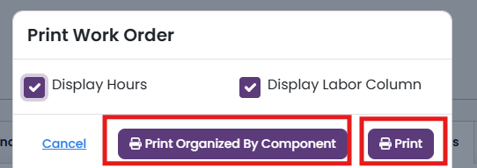
Click the button for the style of work order you want to print:
-
Print: this is the original print style for the work order.
- Print Organized By Component: this is the newest print style.
- If you have discrepancies that are linked to a work order component, this style of work order will group the discrepancies to work order component.
- Any unlinked discrepancy will print below the linked discrepancies.
- If you do not have any discrepancy linked to a work order component, the style will look like the original print style.