
Use Make Not Active when you do not want to actively track a Next Due item, for example an on-condition item, or an item for equipment that is not currently installed. The item is removed from the active list on the Notifications tab and moved to the Not Active tab. When you need to track it again, use Make Active to move it back.
Open the Next Due Tracker
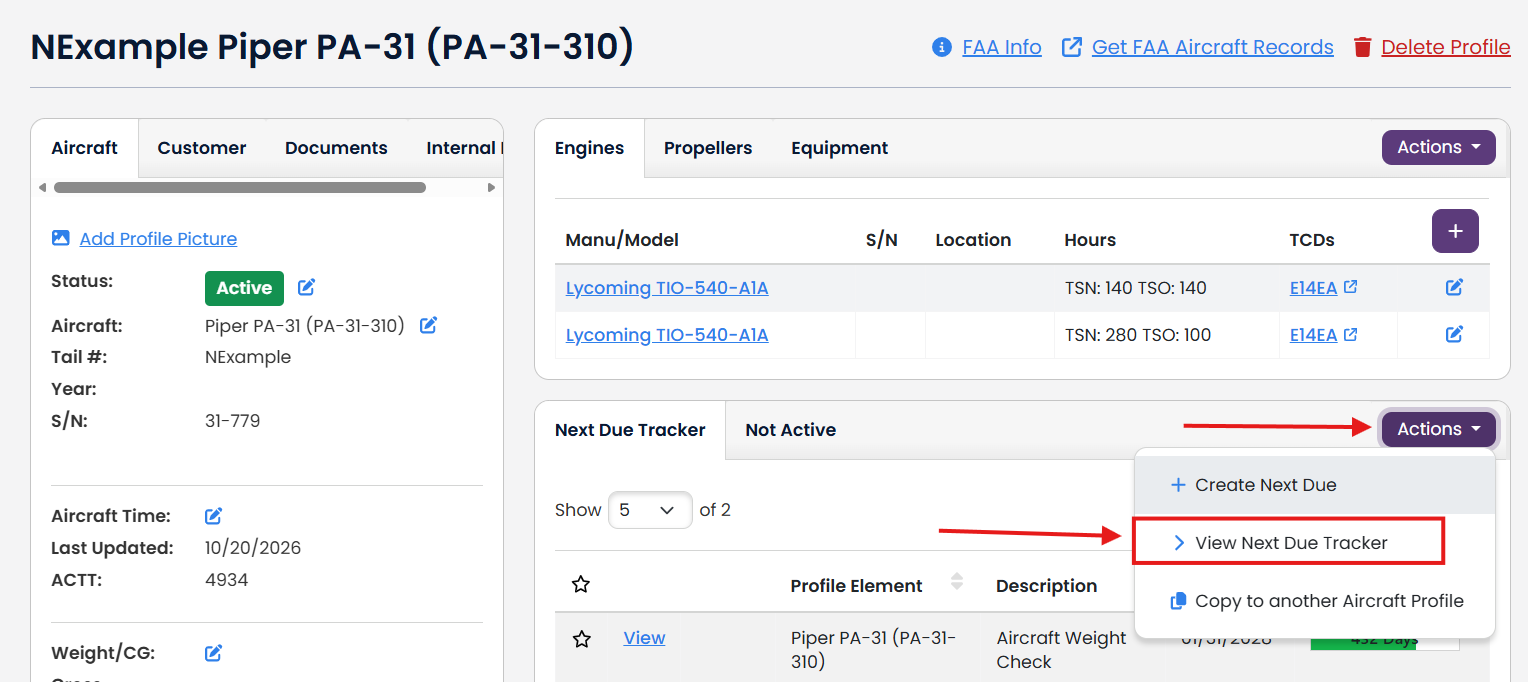
Go to the Aircraft Profile. In the Actions dropdown of the Next Due Tracker table, click View Next Due Tracker.
Make items Not Active
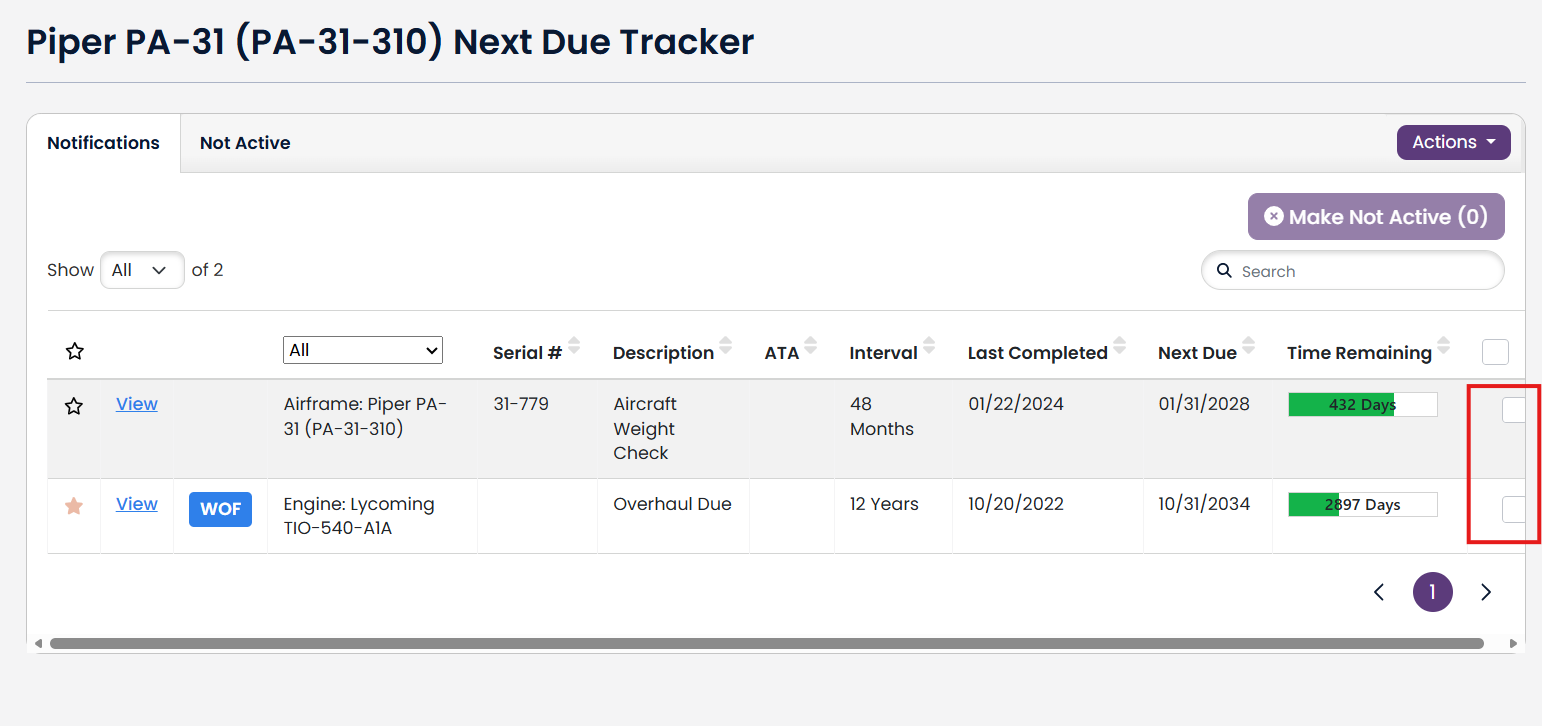
1. On the Notifications tab, find the item or items you want to stop tracking. You can use the component dropdown, the Search box, or column sorting to find them.
2. Check the checkbox at the far right of each item's row. To select every item in the list, check the box in the table header. You may need to scroll the table to the right to see the checkboxes.
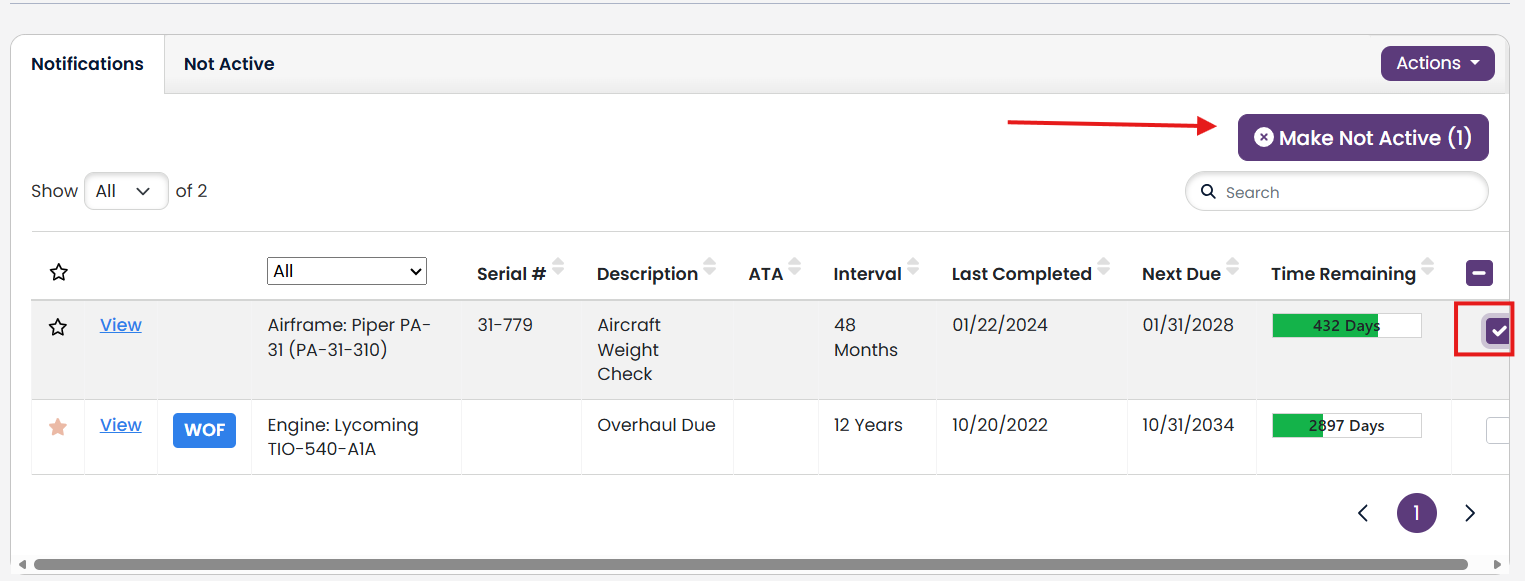
3. Click Make Not Active above the table. The number on the button shows how many items you have selected.
4. A confirmation message appears. Confirm to continue.

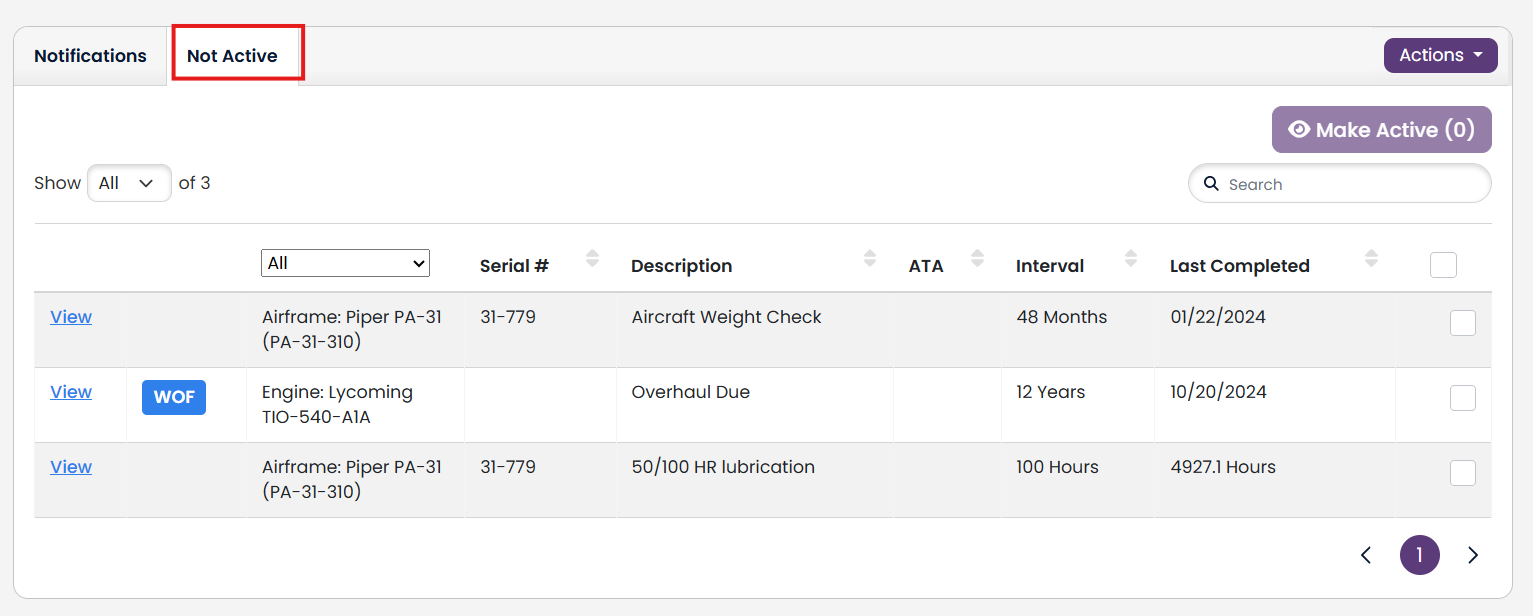
The selected items are removed from the Notifications tab and appear on the Not Active tab.
Make items Active again
1. Click the Not Active tab.
2. Check the checkbox at the far right of each item you want to track again, or check the box in the table header to select all of them.
3. Click Make Active above the table, then confirm in the pop-up message.
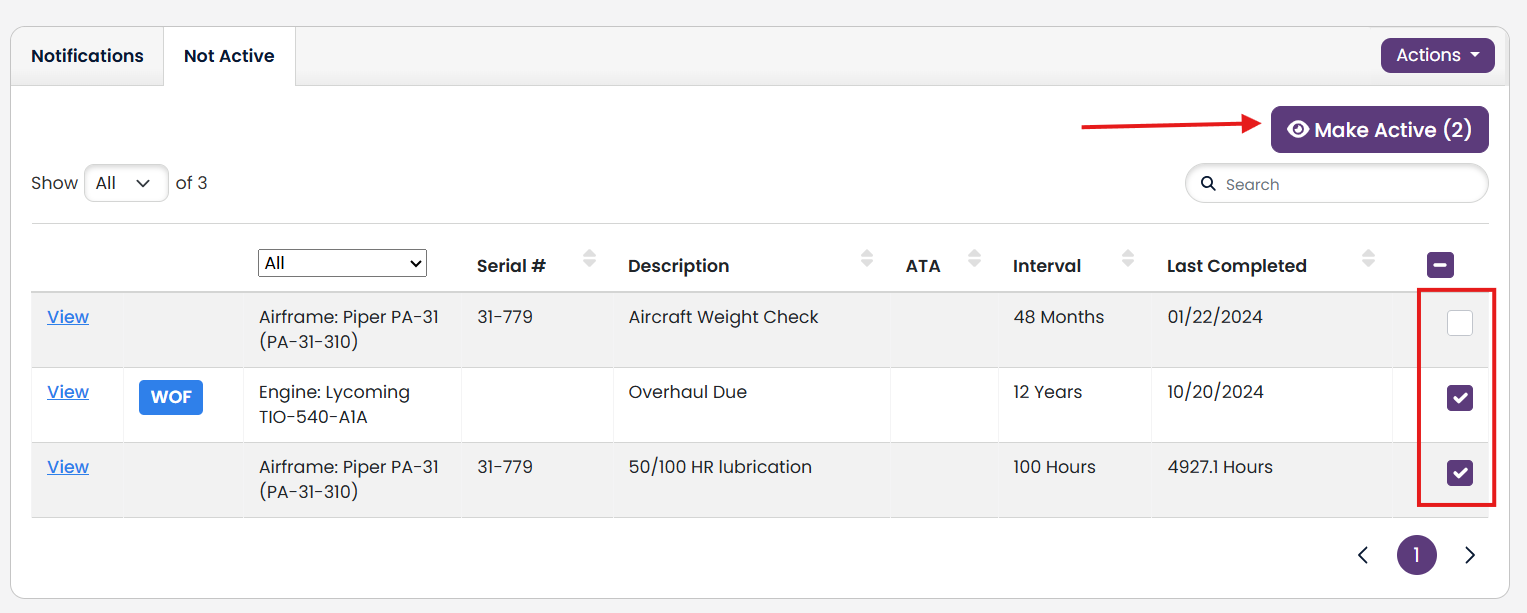
The items move back to the Notifications tab. Next Due is recalculated based on the current hours in the aircraft profile, so check the Next Due and Time Remaining values after reactivating an item.