
To link an AD Report to an Aircraft Profile, the AD Report must not be linked to any other Aircraft Profile. If it is, unlink it first.
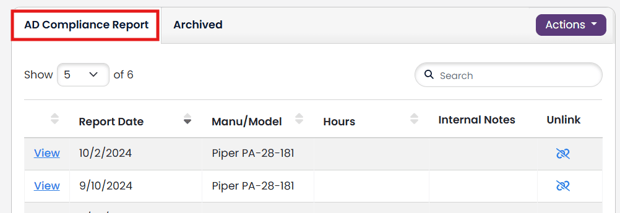
In the aircraft profile, scroll down to the AD Reports table.
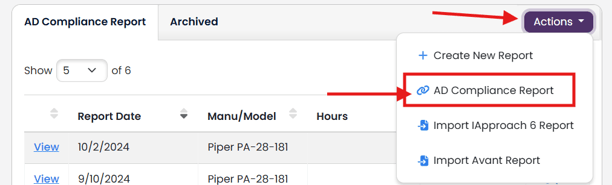
In the Actions drop down, select link icon AD Compliance Report.
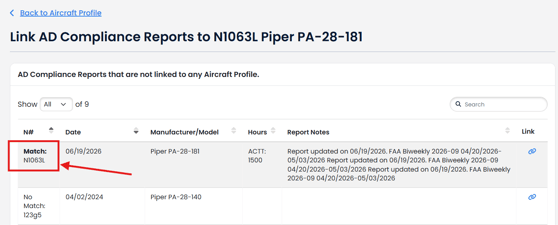
Any AD Compliance Reports with the same Tail # that are not already linked to another aircraft profile will be at the top of the list and designated as Match.
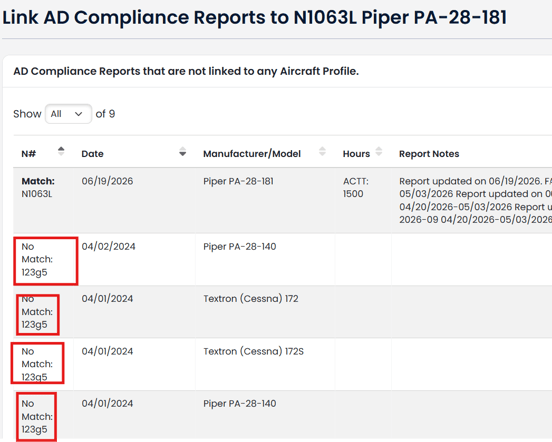
All other AD Compliance Reports that have any Tail # that are not already linked to another aircraft profile will be designated as No Match.
Click the link icon next to the AD Compliance Report that you want to link to this aircraft profile.
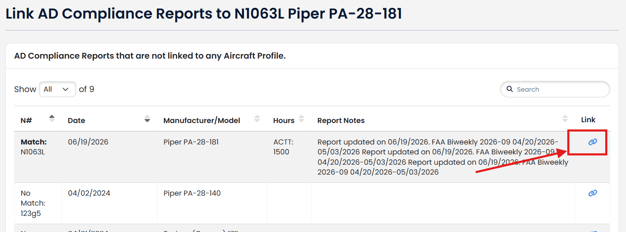
This will link the AD Compliance Report to your Aircraft Profile.
AD Compliance Report Airframe will be mapped to the Aircraft Profile Airframe for ease of updating AD Compliance Report hours.
If the Engine and the Propeller are the same models in your AD Compliance Report AND the serial number from the Aircraft Profile component matches the serial number of the AD Compliance Report component, the engine and propeller will be mapped for ease of updating AD Compliance Report hours.
If Engine or Propeller cannot be mapped, you will need to manually link them inside the AD Compliance Report.
Unlinking an AD Report from an Aircraft Profile
Click the unlink icon next to the AD Report.
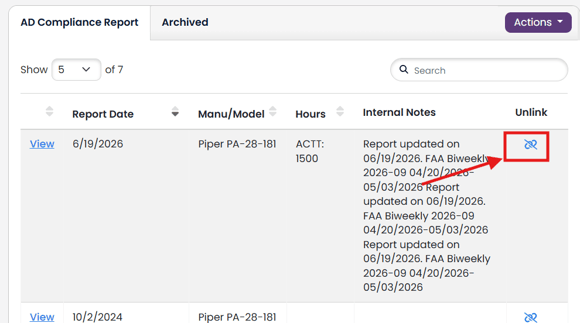
Your AD Report is now unlinked from your Aircraft Profile.