
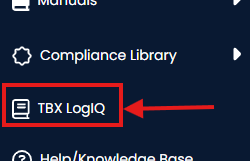
To access LogIQ, click TBX LogIQ on the side navigation panel.
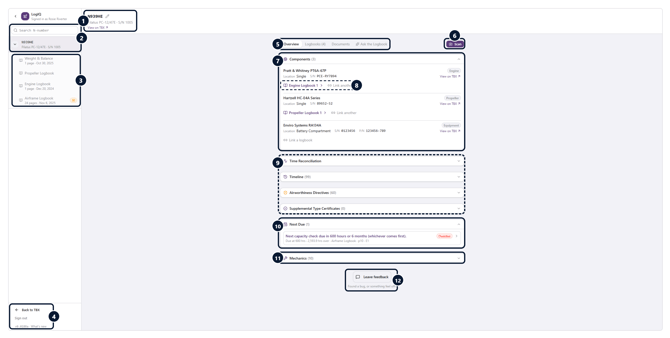
The images below take you through the different sections in LogIQ with brief descriptions.
-
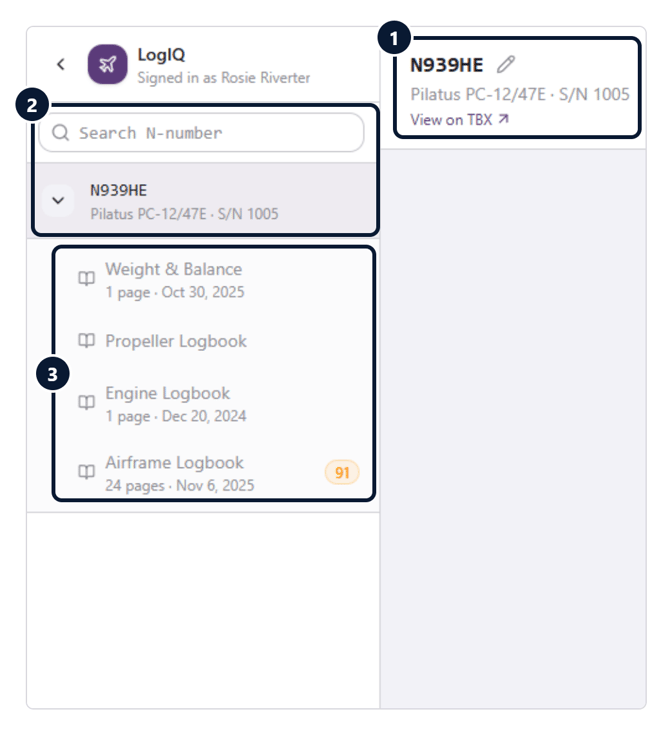
Aircraft header: Tail number (click the pencil to rename), model and serial number, plus a link to this aircraft in TBX.
-
Find an aircraft: Search by N-number, then pick the aircraft to expand its logbooks. Listing will sort by last accessed aircraft.
-
Logbooks: Each logbook shows its page count and most recent entry date. The orange badge shows how many items need your attention.
-
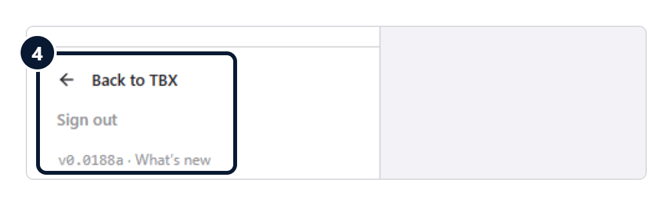
Back to TBX & sign out: Return to TBX, sign out, or see what’s new in this version.

-
Tabs: Switch between Overview, Logbooks, Documents and Ask the Logbook, where you ask questions about the records in plain language.
-
Scan: Add new logbook pages by scanning or uploading them. You can do this via your computer or your mobile device.
-
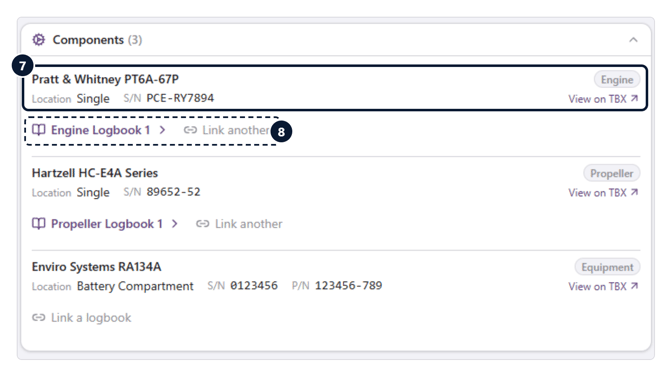
Components: Engine, propeller and equipment installed on the aircraft, with location, serial and part numbers. The tag on the right shows the component type, and View on TBX opens the component’s record in TBX.
-
Linked logbooks: Open a component’s logbook, or use Link another (or Link a logbook) to attach one.
-
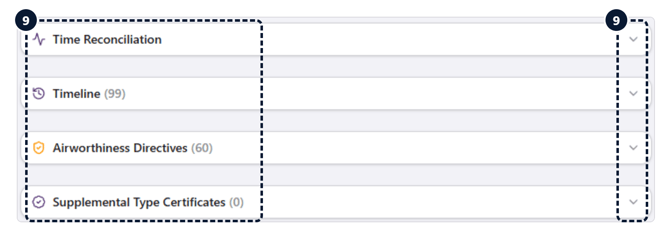
Record sections: Time Reconciliation, Timeline, Airworthiness Directives and STCs. Click a row to expand it; the number in brackets is how many items it holds.
-
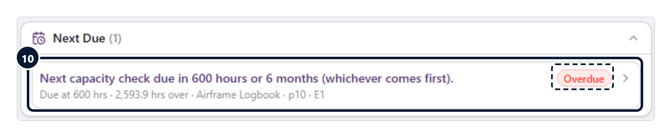
Next Due: Upcoming inspections and recurrent ADs are detected in the uploaded logbooks. A red Overdue tag flags a missed item; the source logbook, page and entry are listed underneath.
-
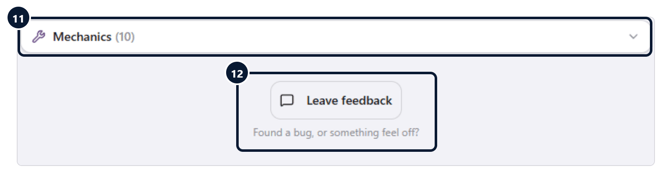
Mechanics: Everyone who signed off work in these logbooks.
-
Leave feedback: Report a bug or anything that looks off. Feel free to also pass along features you do enjoy or you find extremely helpful. We welcome suggestions for continued improvements to this feature.