For more general information on how to get started with Work Orders, go here.
Before continuing, it is recommended that you record you and your Mechanics' Default Hourly Labor Rates. For instructions on doing this, go here.
Clock In/Out on Work Order Page:
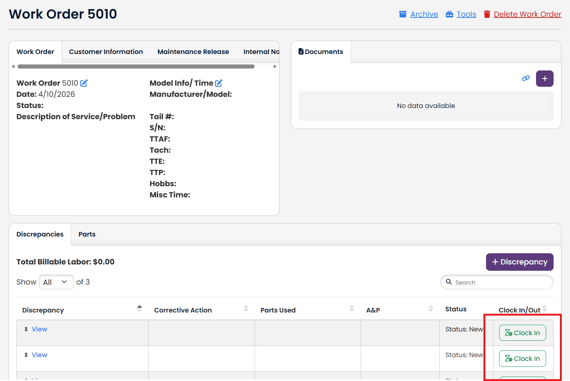
Once you have a Work Order built, if you are not clocked in elsewhere you will see a "Clock In" button on each Discrepancy row
Note: Work Order Clock In button will clock in the user logged in.
Clock In/Out, Manual Entry, and Flat Labor Rate:
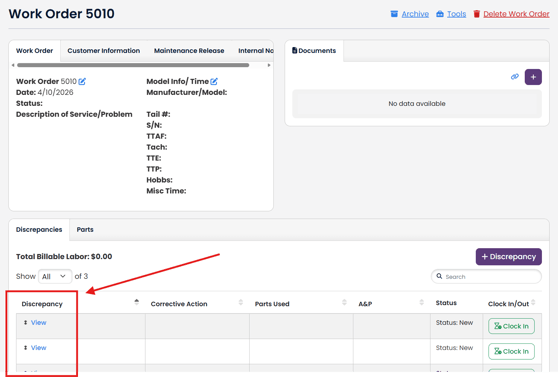
Once you have a Work Order built, view one of your Discrepancies.
-
Note: Single Users and additional users (without valid permissions) will not see an "Add Mechanic" button
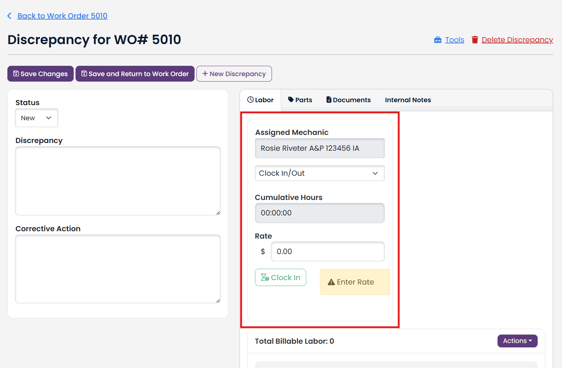
Labor Card: The card will default to Clock In/Out. The rate will default to the User's Default Hourly Labor Rate
- Note: The Add Mechanic button will only remain if there are more available additional users to add. Each mechanic can only have one (1) labor card per discrepancy.
The Assigned Mechanic dropdown will list all users on your account.
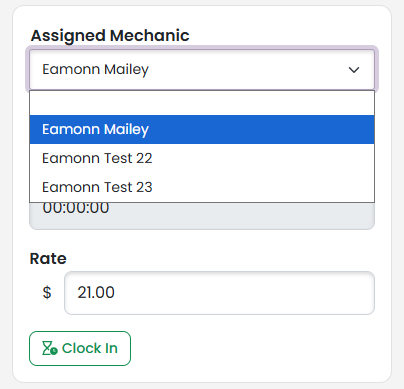
-
Note: If you are logged in as an additional user, you will NOT have the option to select a different assigned mechanic.
The second dropdown has the different metrics used to track time
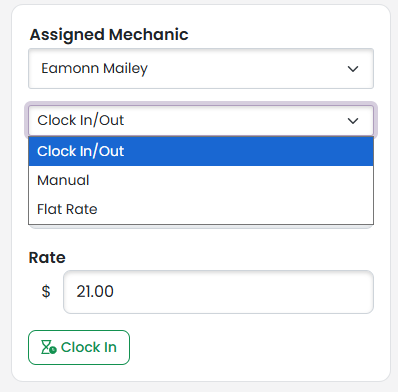
- Clock In/Out
- This feature allows you to keep track of the real-time hours that your mechanics are working on each discrepancy
- Make sure your Rate is set. Then simply press Clock In to start the timeclock
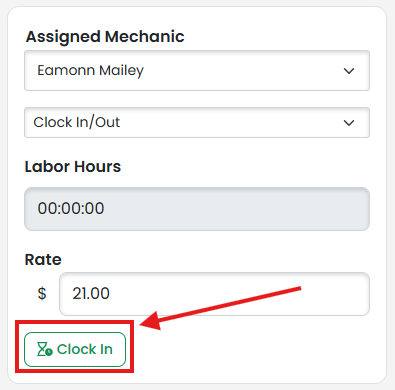
- The Clock in Button will now appear as a Clock Out button. Click that when you are done
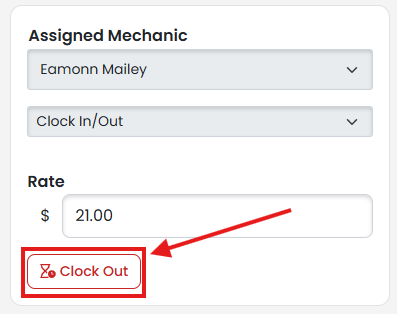
- Upon clocking out, you will see the amount of time spent clocked in to this Discrepancy displayed under Labor Hours
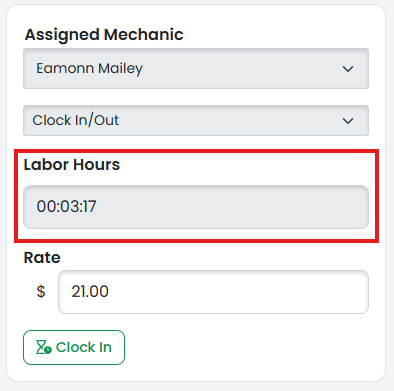
- Note: You can clock in and out of the same Discrepancy multiple times. The combined total time will be shown
- Note: You can clock in and out of the same Discrepancy multiple times. The combined total time will be shown
- How to edit times will be gone over below
- Manual
- This feature allows you to manually input the amount of hours that your mechanics work on each discrepancy
- Set the rate if there isn't a default
- Input the amount of hours worked into New Labor Hours, then click Save
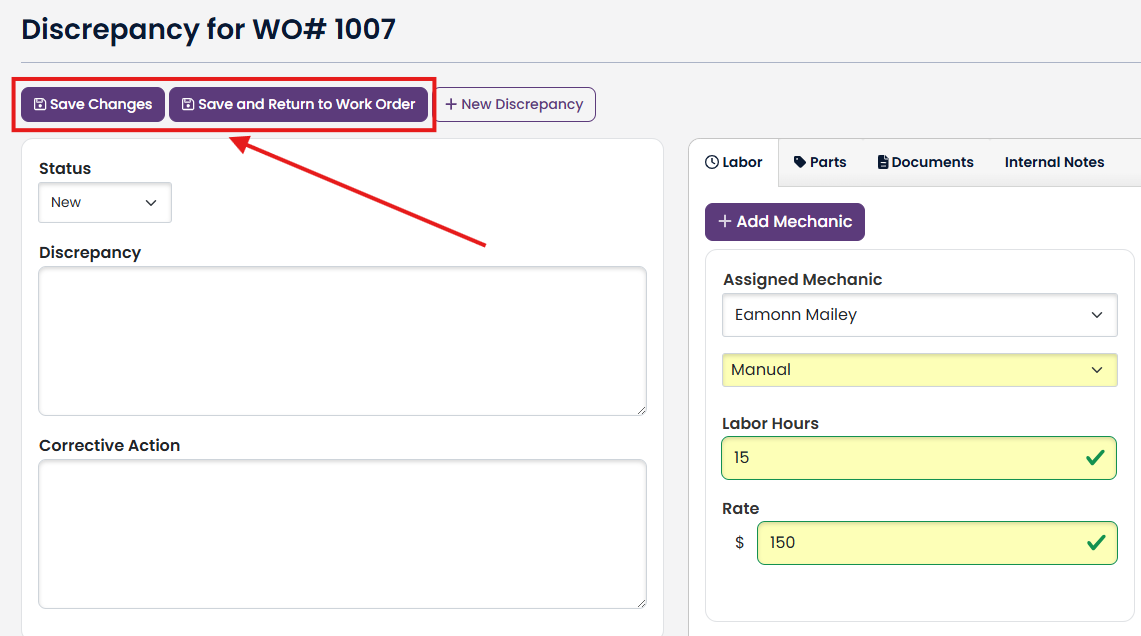
- Note: There can only be one manual rate per Mechanic per Discrepancy. You can update the manual by changing the number and clicking save
- Flat
- This feature allows you to just input a flat rate, with no hours data
- Input the flat rate, then click save
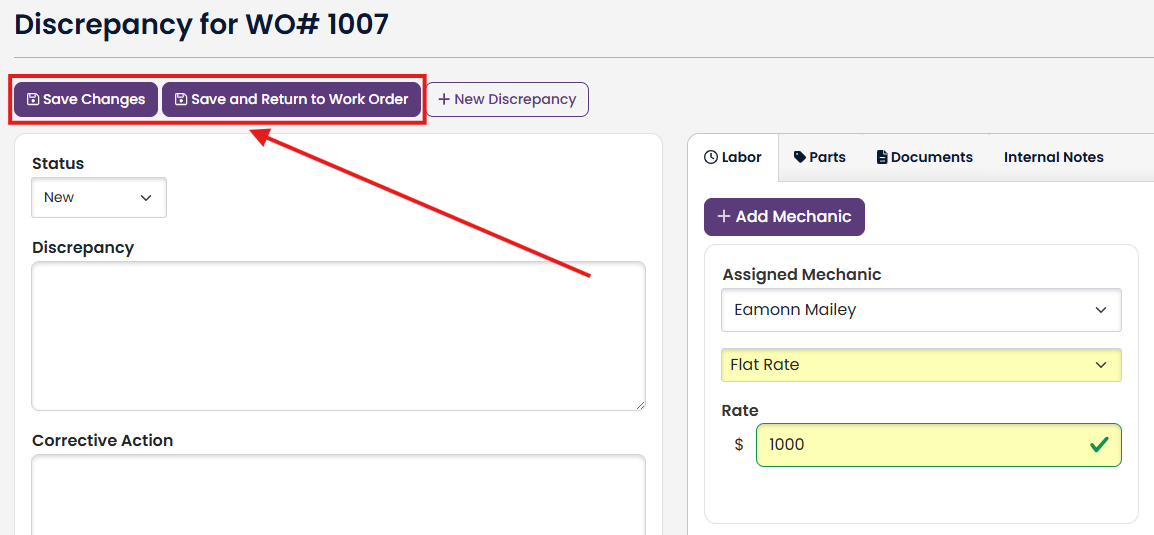
- Note: There can only be one flat rate per Mechanic per Discrepancy. You can update the flat rate by changing the number and clicking save
Edit/Delete Labor(Account Holders and Additional Users with Company Info Permission)
In the same tab with your Labor Cards, there will be a "Total Billable Labor" table listing all Distinct Clock Ins/Outs, Manual Entries, and Flat Rates.
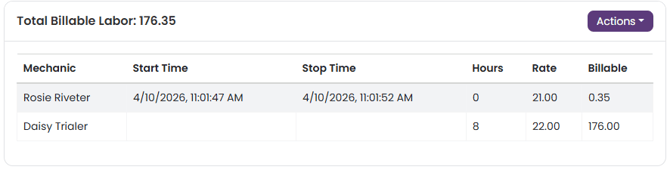
To edit this information, click on the Actions button, and click Edit Labor Hours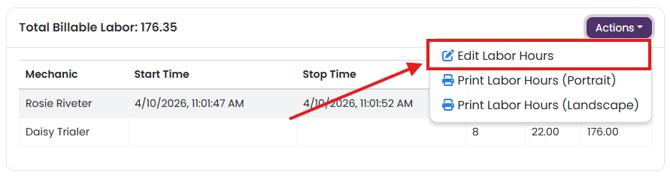
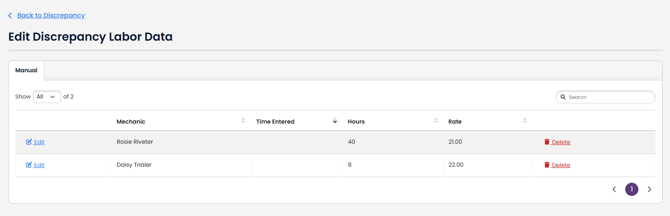
You will be brought to a screen showing all Labor entries separated by tabs
To change any of the information, click the edit button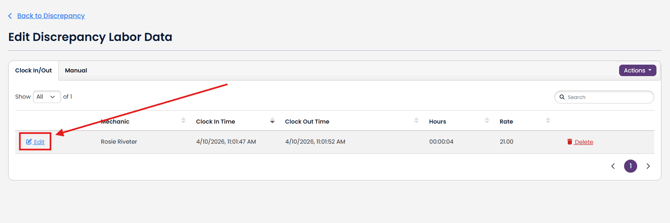
Update the values, and then click Save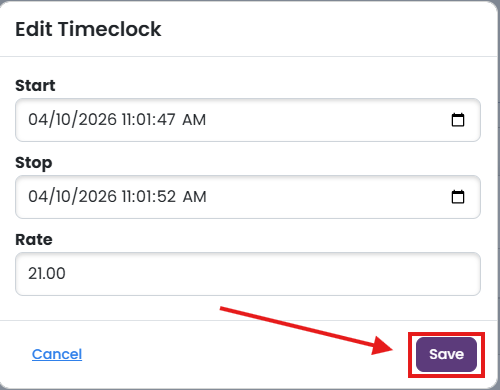
To Delete an entry, click the Delete button on the far right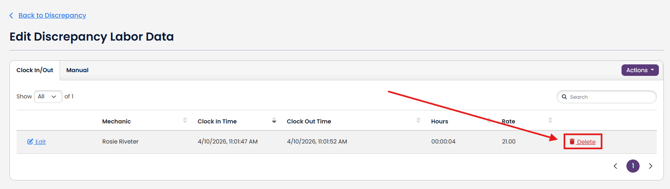
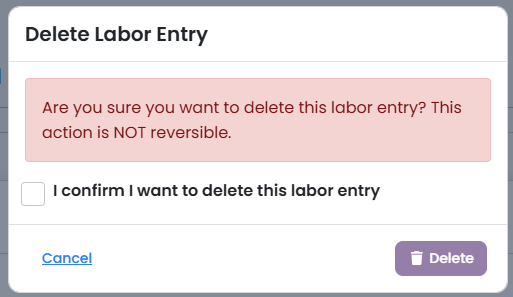
Confirm you want to Delete it with the checkbox, then click Delete
Converting Clock In/Out Into Manual or Flat Rate
If there is ever a time where you want to substitute all of your Clock In/Out information with a Manual or Flat Rate, there is an easy solution
Go to the "Edit Labor Hours" page by clicking the Actions button on the "Total Billable Labor" table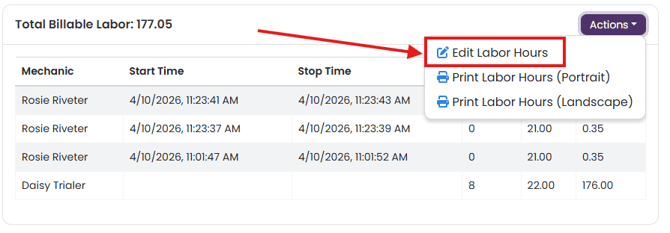
Go to the Actions button on the "Edit Discrepancy Labor Data" page, and select whether you'd like to convert to Manual or Flat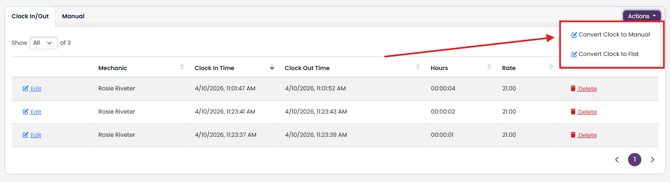
Select the Mechanic with Clock In/Out data that you would like to convert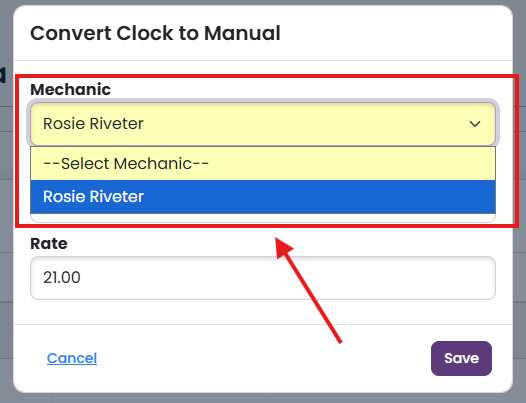
Enter what you want your new data to be, and click Save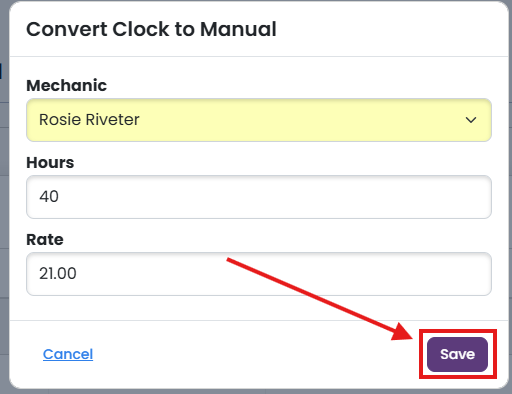
Your Clock In/Out data for that mechanic will be removed, and it will be replaced with the type of Labor you selected