To update an AD Compliance Report, navigate to the report you want to update.
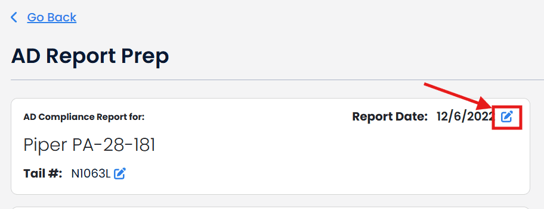
Once on the AD Report Prep screen, there are two options on how to update your AD Compliance Report to check for new ADs.
1. Check the blue pencil icon next to the report date: or
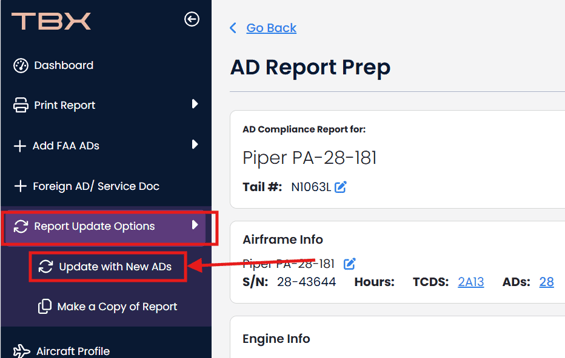
2. Click Report Update Options and then Update with New ADs on the left-hand nav bar.
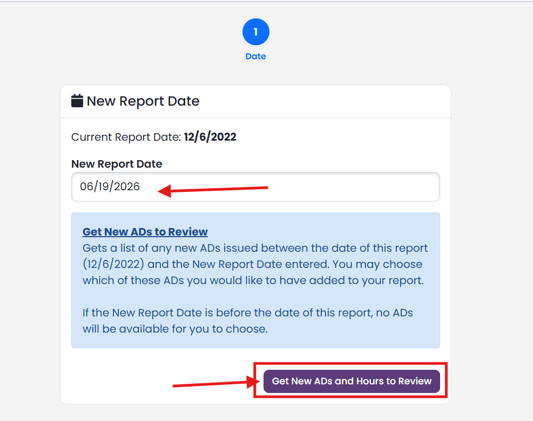
Previously, the update report option and change report date option were separate options. As of 06/21/2026, these options were consolidated for a better user experience.
Enter the date you would like to update your report date to. By default, today's date will be added.
Click Get New ADs to Review (or Get New ADs and Hours to Review) button.
For each component in your AD Compliance Report, you will see a list of ADs that may need to be added to your report.
If you want to review the AD before adding it to your report, click the AD link.
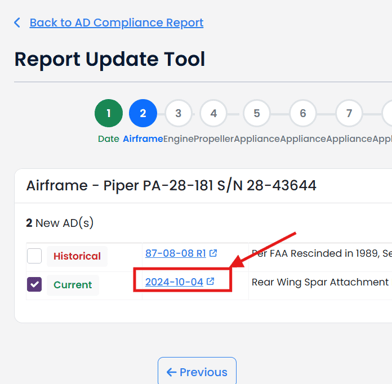
ADs will open in a separate tab. This gives you the ability to look at the AD and when done, simply close the tab. The Report Update Tool will be in a separate tab.
If you do not want to add the AD to your report, uncheck the AD.
All checked ADs will be added to your report.
If the AD Compliance Report component is linked to an Aircraft Profile component, you will have the opportunity to also indicate you would like to update AD Compliance Report component hours by leaving the Update Hours checked.
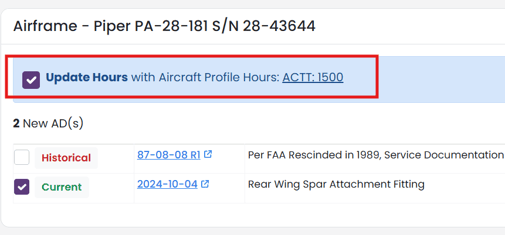
When you have completed selecting/ unselecting ADs and checking/ unchecking Update Hours, click "Next"
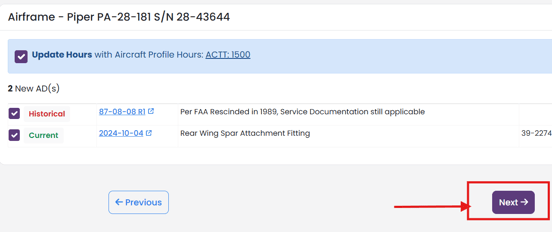
You will have an opportunity to do the same for any engine or propeller that is in your AD Compliance Report.
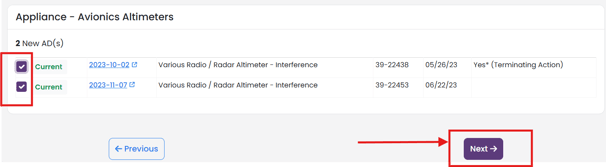
Any appliance AD that was published between the original date of your AD Compliance Report and the New Report Date will be available for review.
Appliance ADs are broken out by Category.
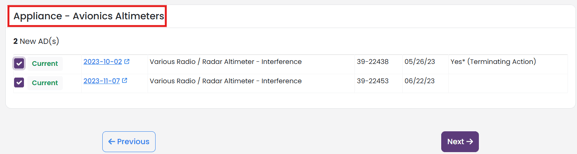
For each Category, review the ADs. Uncheck any Appliance ADs in that category that you do not want to add to your AD Compliance Report. Click "Next".
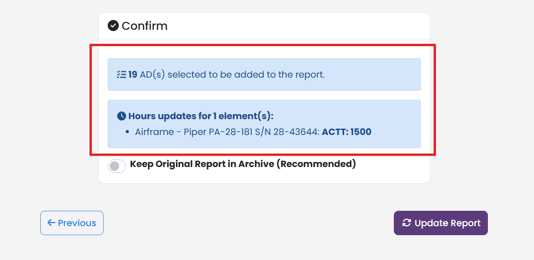
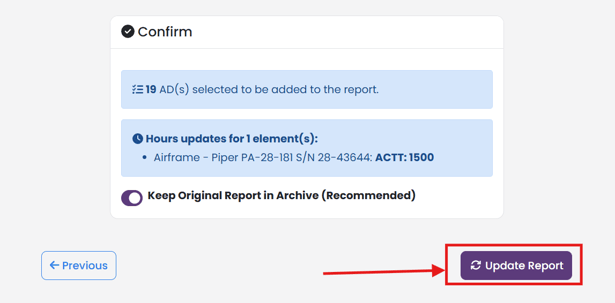
Once all Airframe, Engine, Propeller, and Appliance ADs are reviewed, you will see a summary of what will be added to your AD Compliance Report.
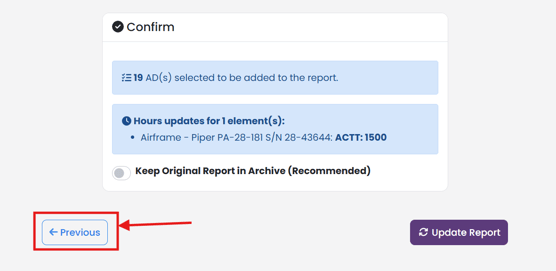
You may click "Previous" to go back to any step in the Report Update Tool and change your selections.
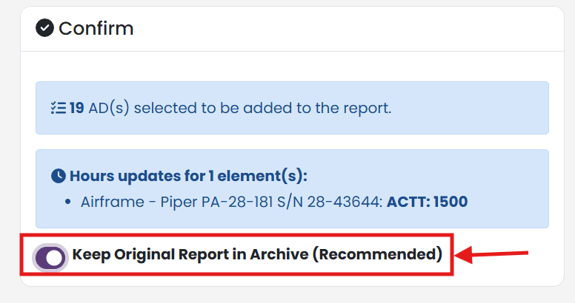
You have the option to save a copy of your original report in your archive. We strongly recommend that you save a copy.
Click Update Report to complete the update report process.
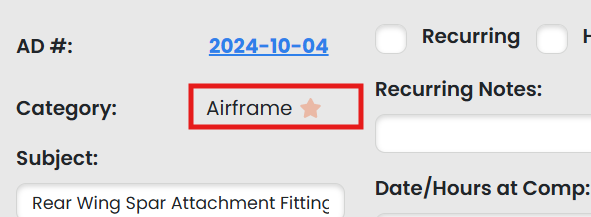
Newly Added ADs are indicated in your report by a star.