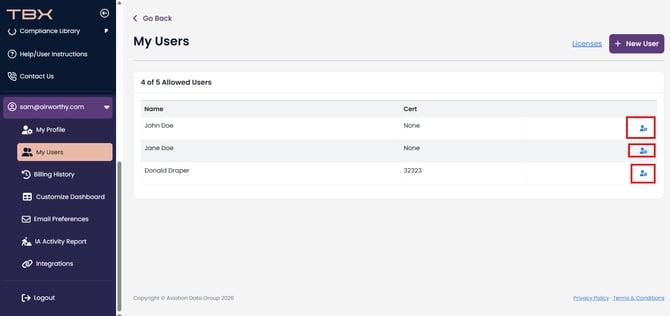
To start- let's first remove the old user-
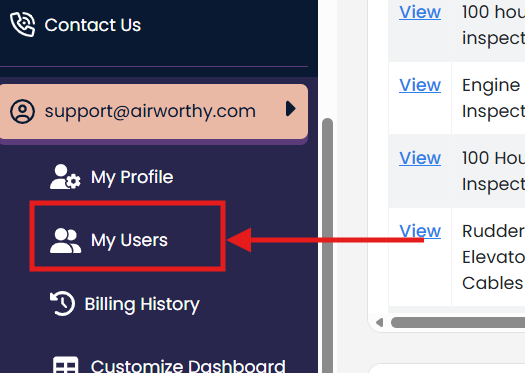
Click "My Users"
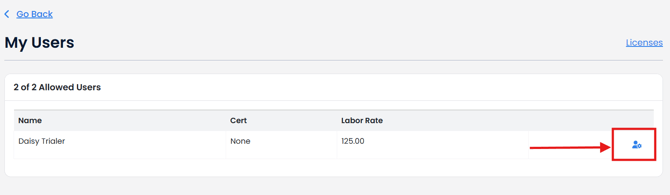
Click the cog icon next to the user you want to remove from your account.
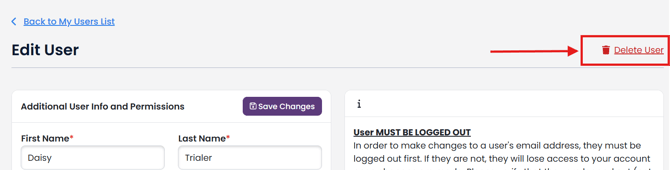
Click "Delete User"
READ the Delete this User statement.
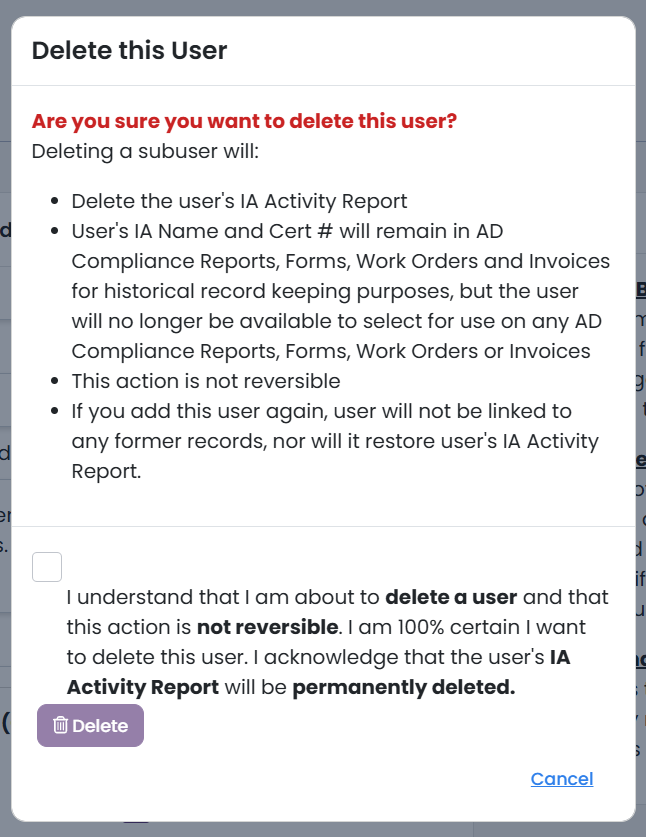
If you agree, check the checkbox and click "Delete"
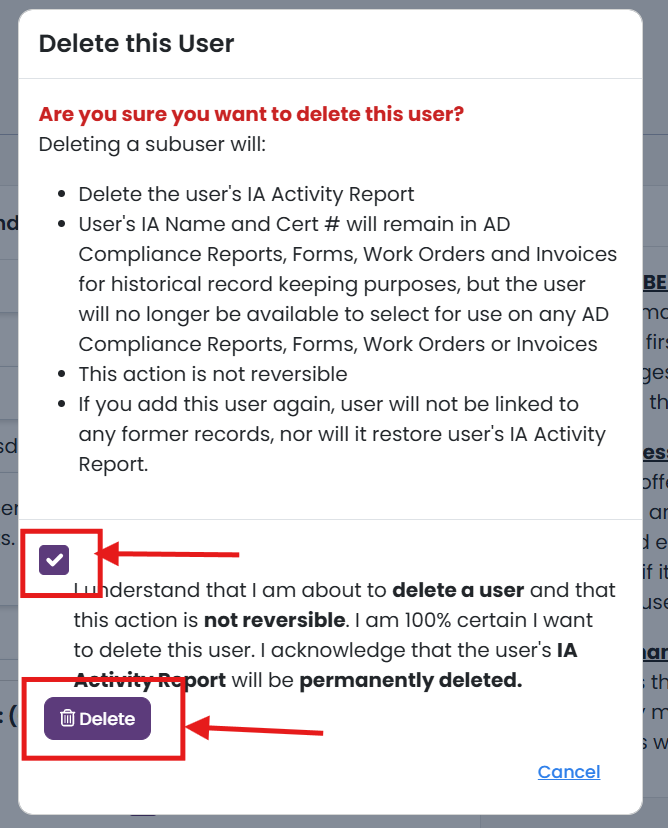
This user will be deleted and you will have access to use the additional user license for a different user or downgrade your additional user licenses in your account.
Now let's add the new user-
Click "+ New User":

Enter First Name, Last Name, Email Address, and Certificate Number (if applicable). You can also control this users access if needed. When completed, select "Add New User" below.
NOTE: Email Addresses must be valid and unique to TBX. Additional Users will be emailed their log in credentials.
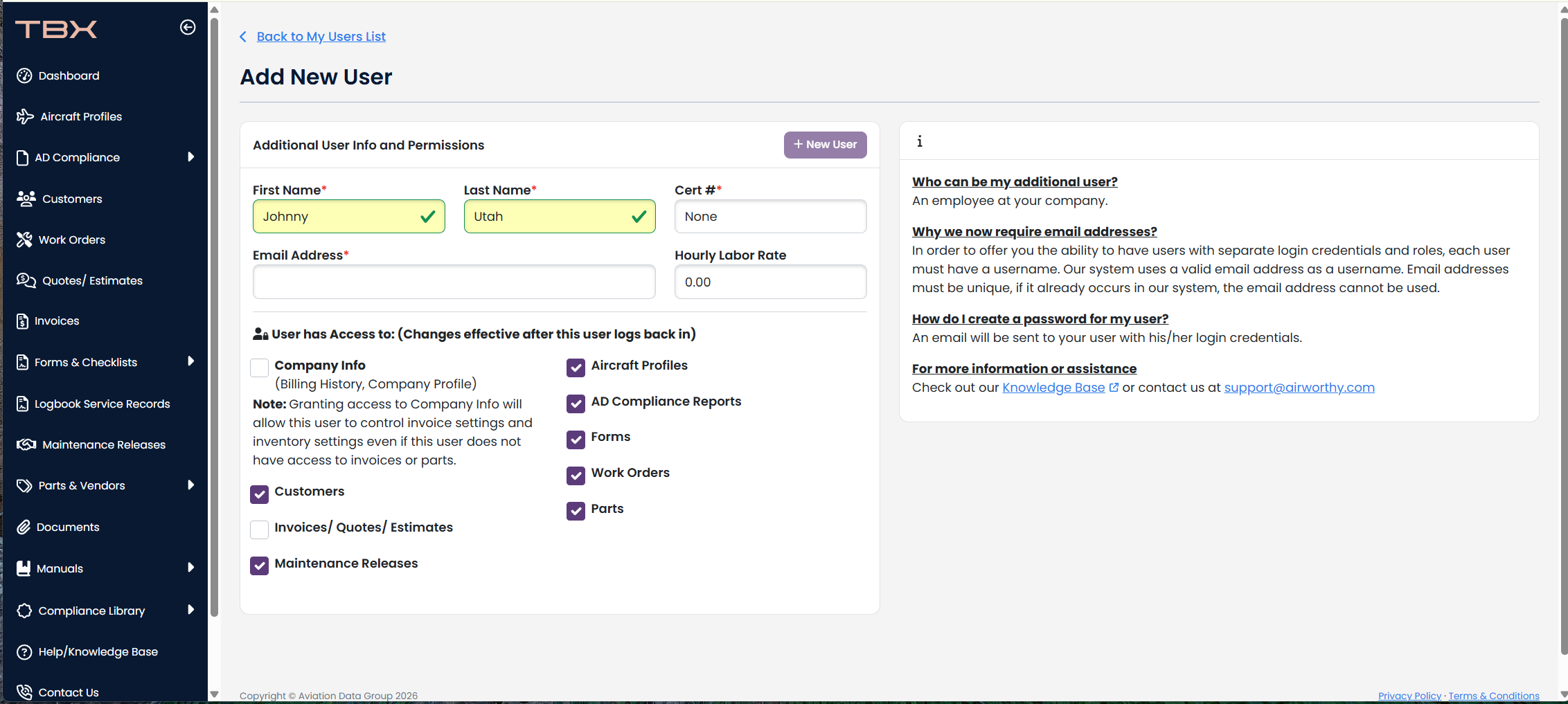
Once the additional user has been created, they will be listed under your "my users" section. You can click the icon to the right of their name to edit theirs or any of your existing additional users' information.