
In TBX, users can track or plan maintenance work, including labor, parts, and information about the work completed (or to be completed) on an aircraft.
Work orders can be tied to Aircraft Profiles (recommended) or live on their own, and can be used to drive the following workflows:
- Build a quote or an estimate for a customer to approve maintenance or inspections
- Build maintenance logs of work performed and parts used
- Invoice a customer all at once or as work is completed
- Print a logbook service record ("LSR") as a full or quarter page
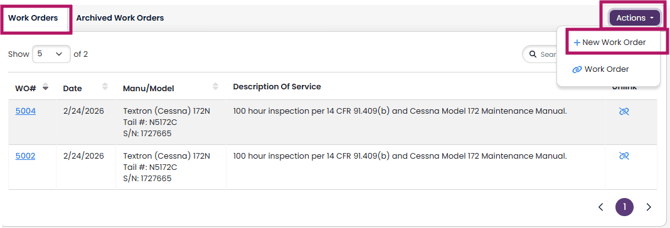
To build a maintenance work order, navigate to the "Work Orders" section of your Aircraft Profile (or, if you don't want to link it to an aircraft, use the "Work Orders" option on the left side navigation menu).
Click on, "+ New Work Order"
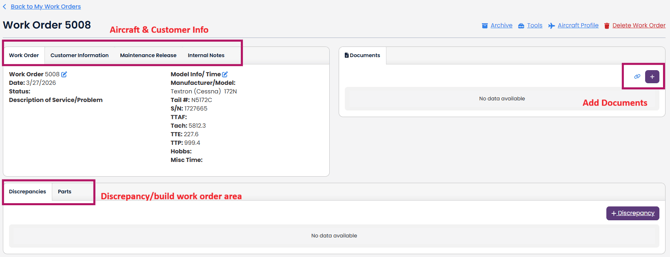
You now have a work order, where the top has aircraft and customer information, alongside a place to add any documents; and a bottom area where you can begin to list the work. If you created it from the aircraft profile, information including aircraft times will already be populated.
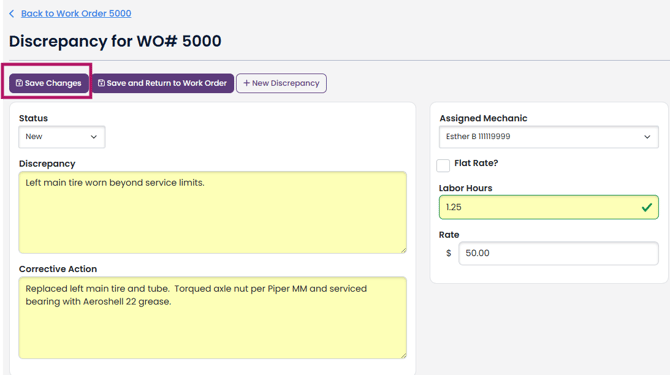
To add a discrepancy, click on the "+ Discrepancy" button and fill in the description of the discrepancy/work, and click "Save Changes"
You can add parts at the Discrepancy or Work Order level. To have a Part associated with a Discrepancy, click the "+" button in the Parts window.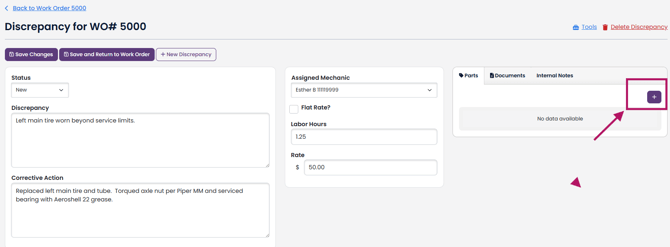
On the pop up window, click "+ Add Part"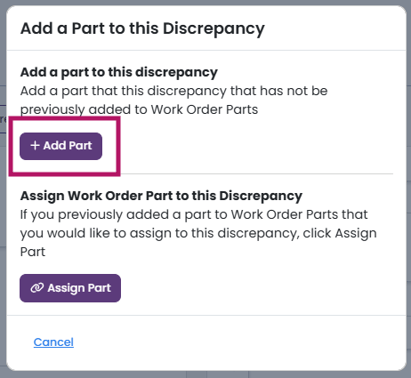
Start typing in the part name. If you already have the part set up, you can select the part from the dropdown that will appear, and the information will get populated. Otherwise, type in the part name, part number and serial number. Enter the quantity and edit the price/cost fields if necessary.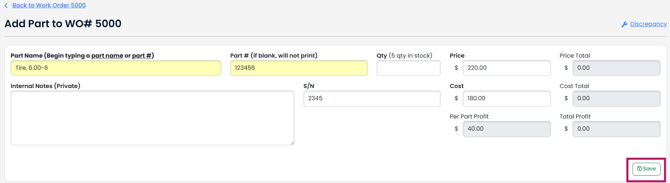
If you have entered a part that was not previously set up in TBX, you will be given the option to add this part to the Parts inventory so that it can be tracked and added to work orders in the future.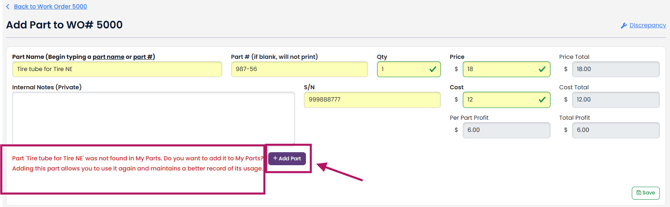
This will open a pop up window where you can set the inventory count for this part and click "Save to My Parts" to create the Part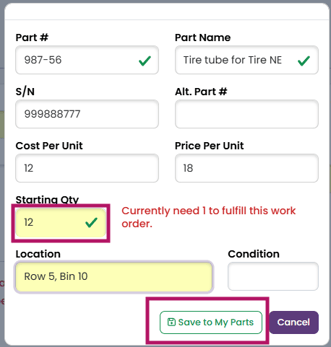
You'll need to click "Save" one more time to add the part to the Discrepancy.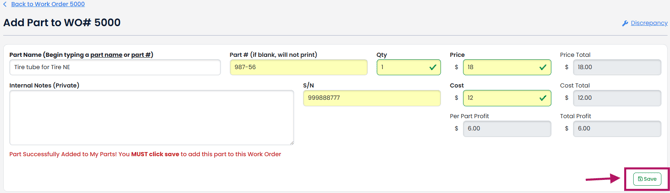
Once you have entered your Discrepancies and the parts, you can see them all in the Work Order.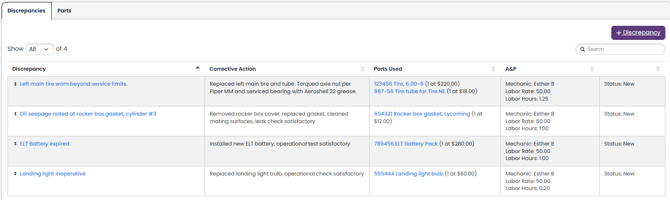
If you prefer, you can just have parts on a work order and not associated with a specific Discrepancy. To do this, click on the Parts tab, where you can add parts using the '+Part' button and follow a very similar process.

Finally, when you are done with the work order, you have the option to convert this order into a quote, an estimate, an invoice, or a logbook service record ("LSR"). To select any of these options, click on the "Tools" button.
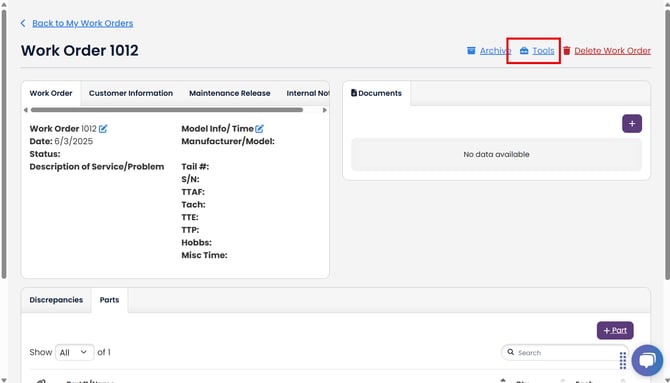
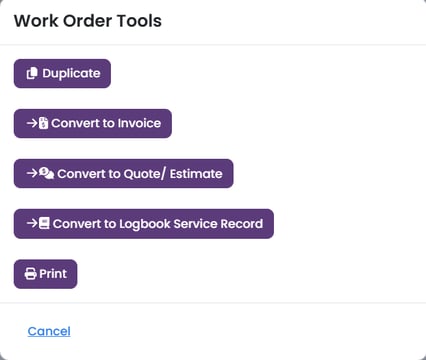
This will bring up a pop up to select the appropriate action - you can Duplicate, Convert to Invoice, Quote/Estimate, or Logbook Service Record. You can also print the work order.
Work orders are a powerful tool in building workflows for your shop/maintenance processes.