
Navigate to the Aircraft Profile that you want to update hours for.
Select the blue pencil icon next to Aircraft Time
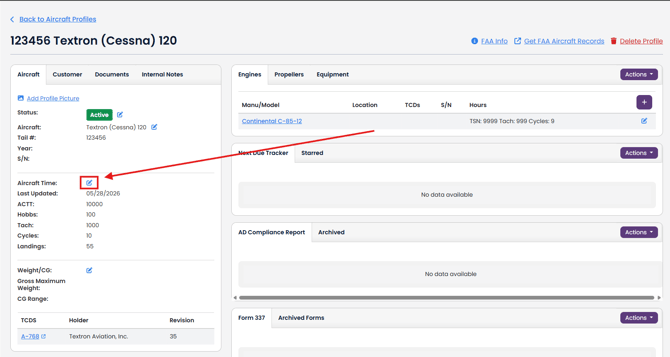
From the Edit Time page, you have the following options:
-
Adding an hours type to an aircraft profile component
-
Deleting an hours type from an aircraft profile component
- Changing the order of an hours type for an aircraft profile component.
- Updating engine, propeller, and equipment times based on the airframe times.
- Manually updating hours and notes for an hours type
Adding New Hours Type:
Scroll to the Component that you want to add the new hours to. Then select + Add Hours Type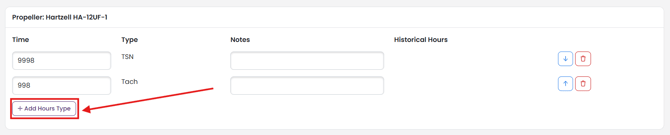
Select the type of hours you want to add from the dropdown
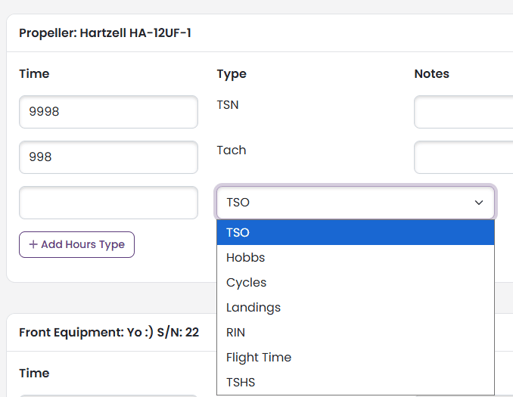
Add the hours and notes and then click the Save button to the right

Deleting Hours Type:
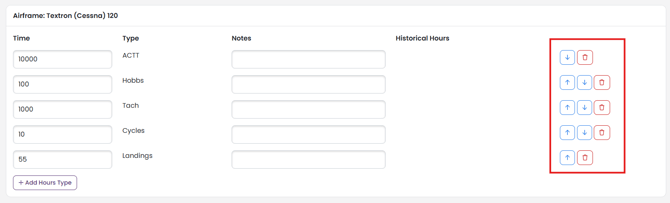
To delete an hours type from an aircraft profile component, click the trash can button next to the hours type you want to delete.
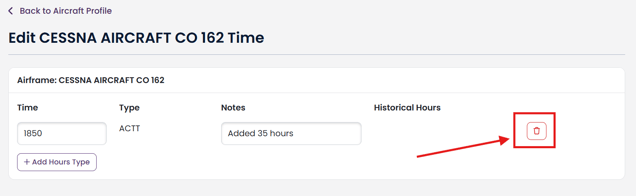
Click Delete This Hours Entry button to complete the delete process.
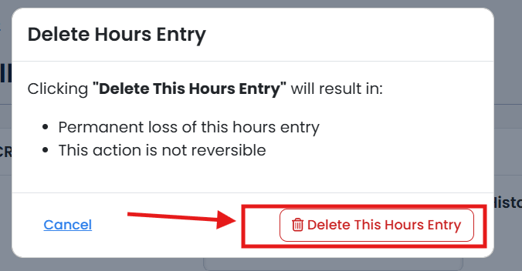
IMPORTANT: Next Due Items in the Next Due Tracker will be affected.
Reorder Hours:
To change the ordering of any of your hours type:
Click the down arrow to move the hours type down
Click the up arrow to move the hours type up.
Update Hours from Airframe Toggle (updating engine, propeller, and equipment hours based on the airframe hours):
The Update Hours from Airframe toggle is designed to help save you time when updating hours across all aircraft profile components.
Toggle the Update Hours from Airframe switch on.
When Update Hours from Aircraft is on, matching hours types in the engine, propeller, and equipment will be updated by adding the value of the change (the delta) in the hours type in airframe hours.
Example: If the value of airframe ACTT is 10 and you update it to be 15, the value of the change, 5, will be added to any TSN hours type in engine, propeller and equipment.
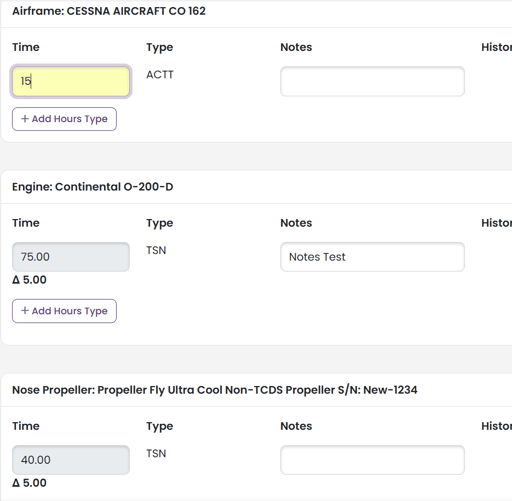
Any updated hours type field will be disabled (you cannot alter), and the value of the change will appear directly below the newly calculated time.
To accept these changes, click Save Changes button.

If you do not want to accept these changes, toggle off the Update Hours from Airframe. This will restore the original value of the times in engine, propellers, and equipment.
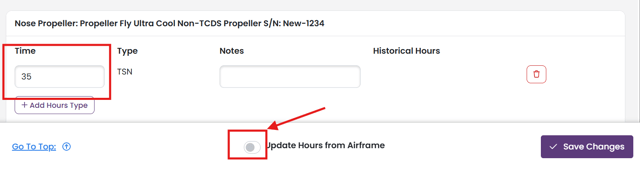
To manually update hours for each aircraft profile component, make sure the Update Hours from Airframe is toggled off.
Change the value of any times fields or notes fields and click Save Changes button.