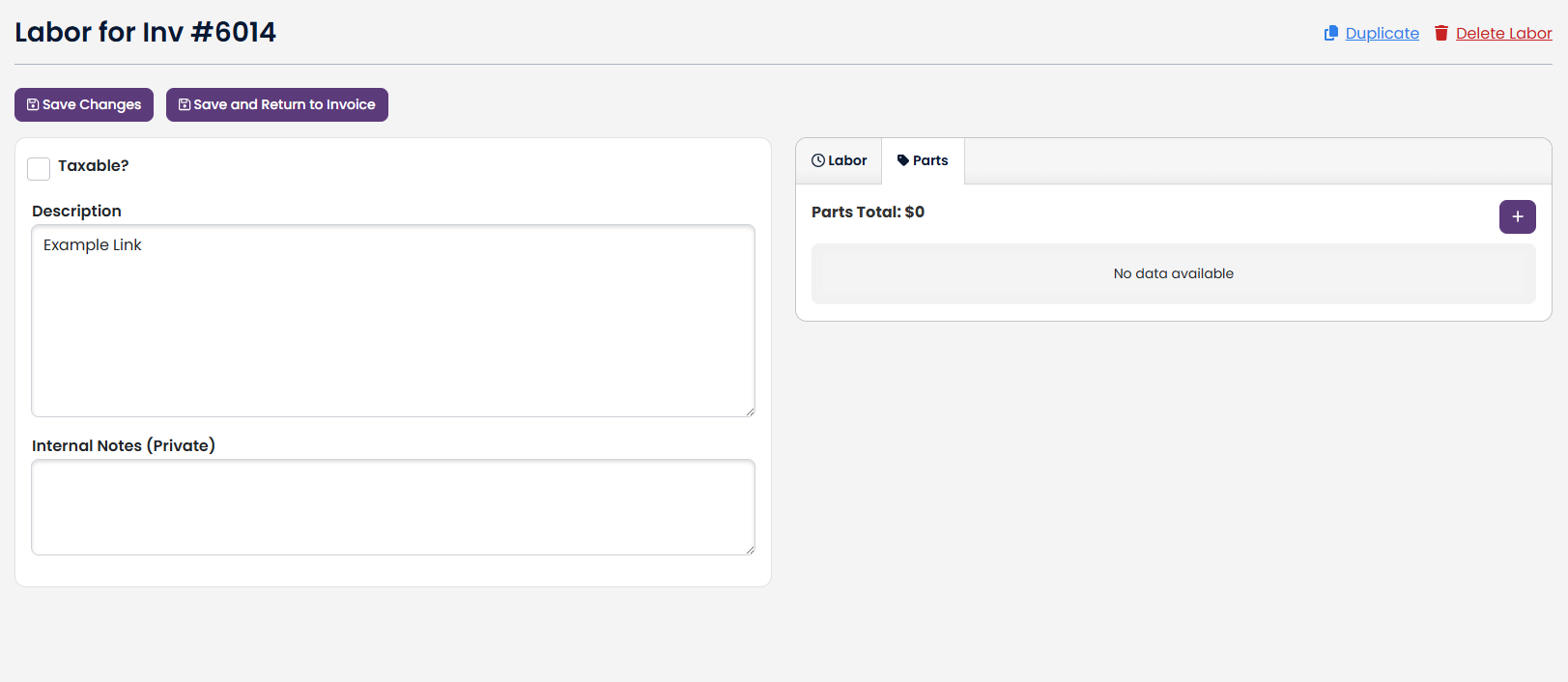
Add:
To ADD a part to an Invoice Labor, navigate to that Invoice Labor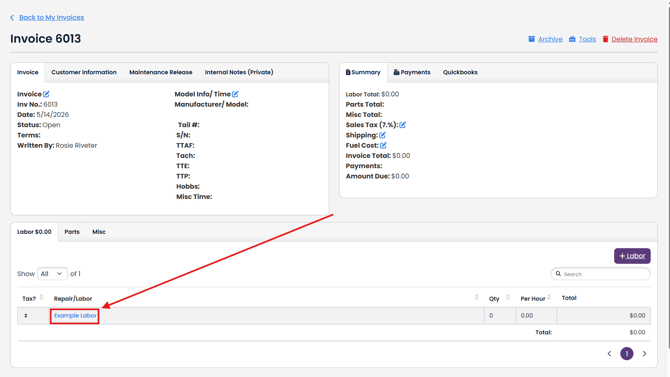
Click on the Parts tab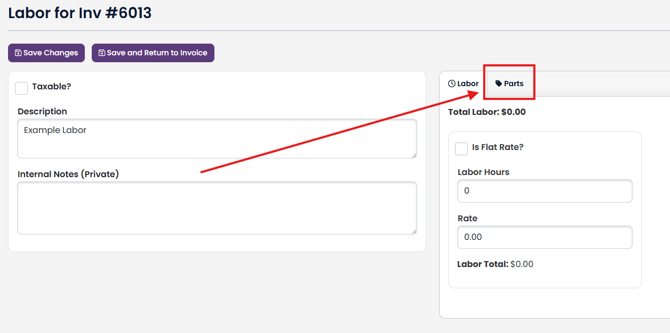
Click on the + button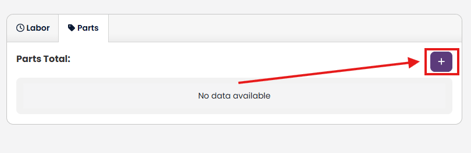
Click on + Add Part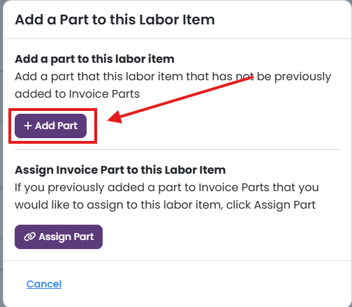
Now you will be brought to a new page where you can add a part from your Inventory based on its Name or Number
When you have finished entering the necessary information, click Save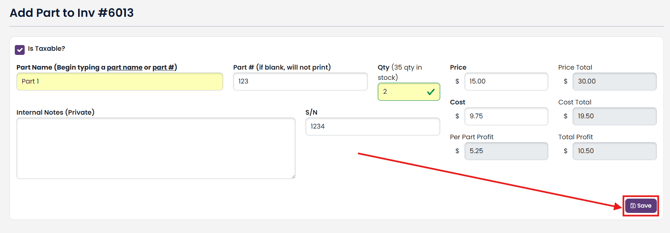
Now this part will show up under the Parts tab in the Invoice Labor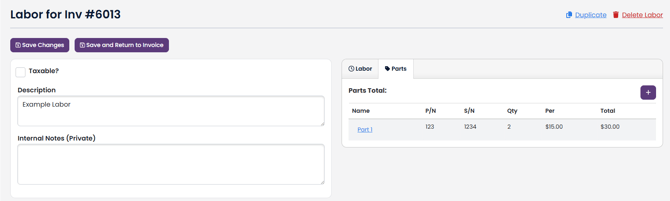
Link:
When a part is added to an Invoice, but not to any specific Invoice Labor in it, you can link the part to an Invoice Labor
Navigate to your Invoice Labor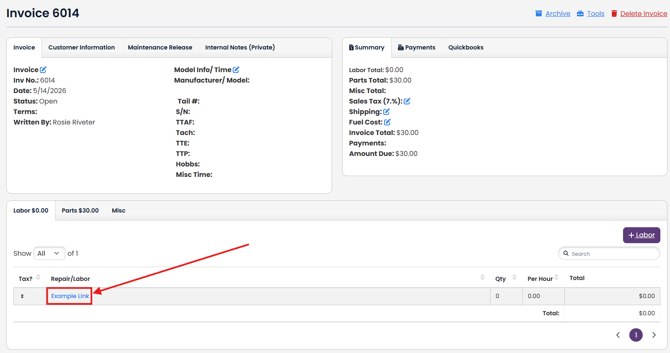
Click on the Parts tab and the + button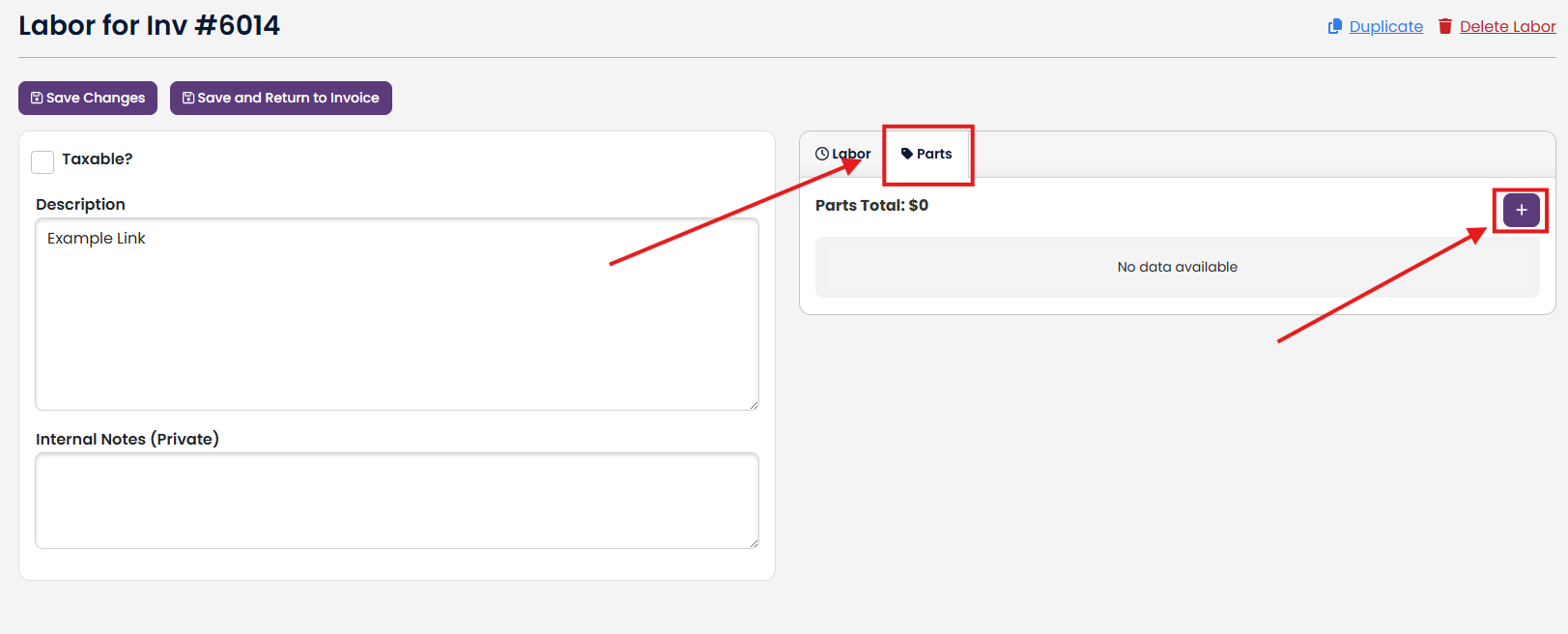
Click on Assign Part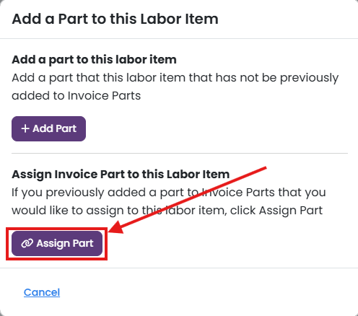
All parts for the Invoice that are not assigned to a Labor will be listed. To assign one, click Assign Part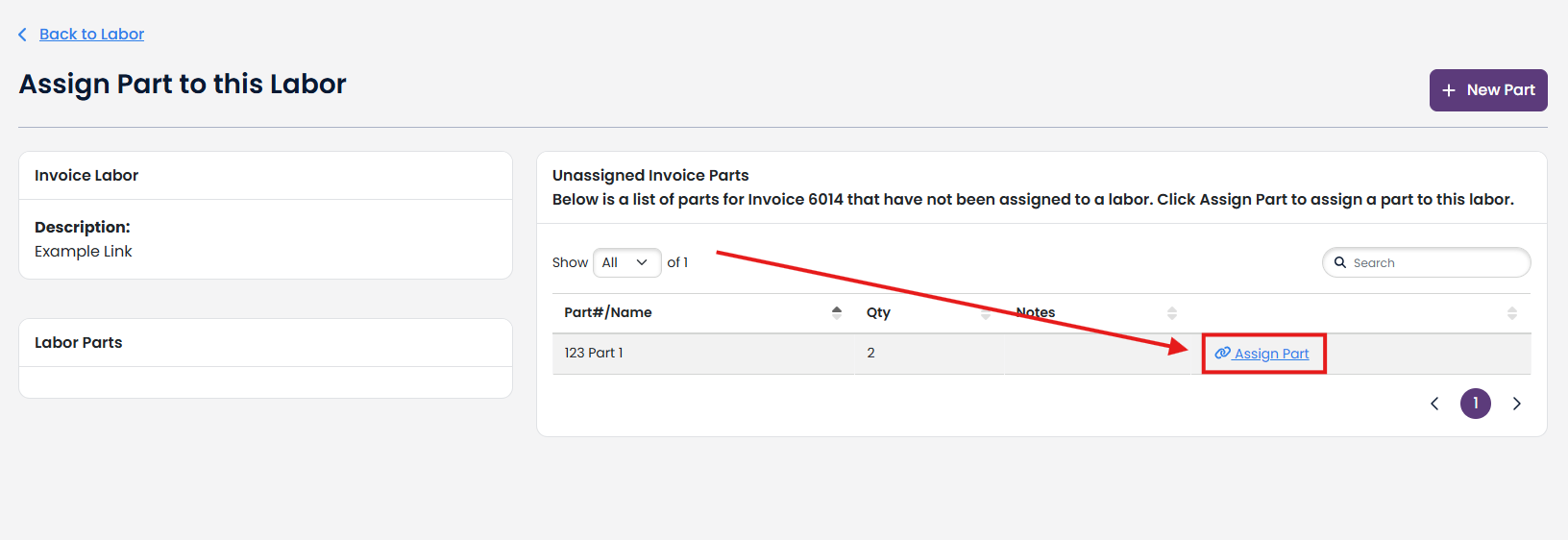
Now the part will show up under the Parts tab in the Invoice Labor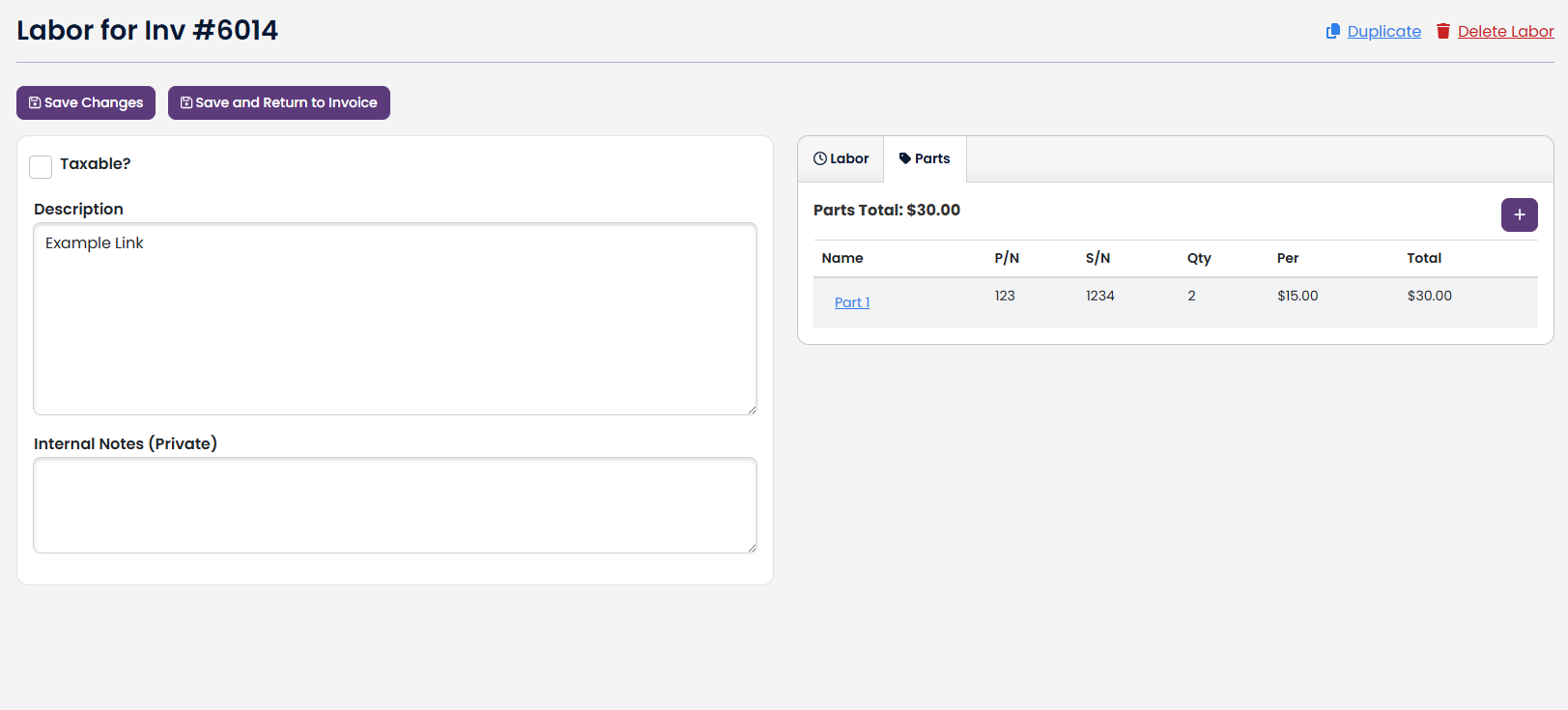
Remove:
If you want to remove the link between an Invoice Labor and a Part, simply navigate to the Invoice Labor and click on the Parts tab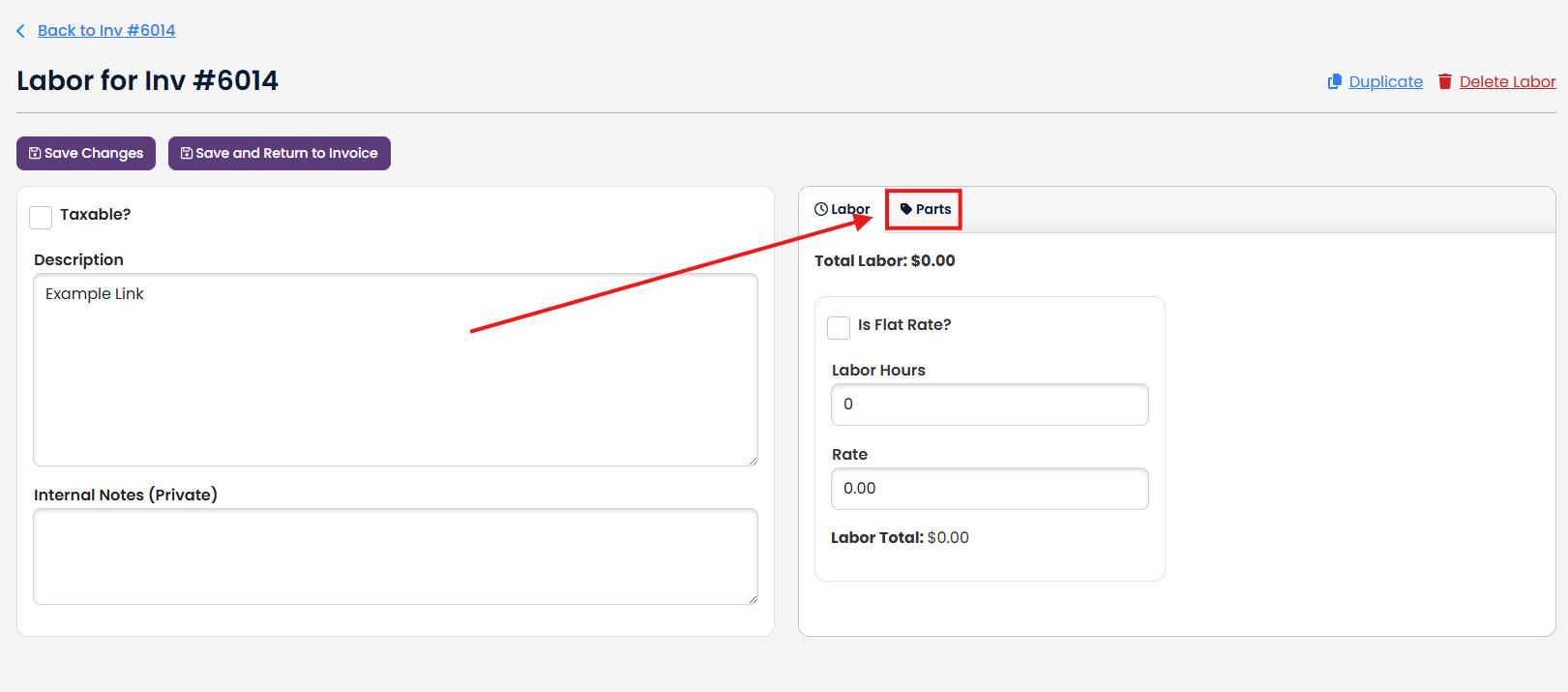
Click on the assigned Part that you want to remove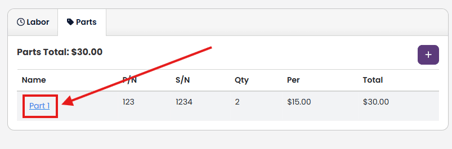
Click on the Remove from Labor button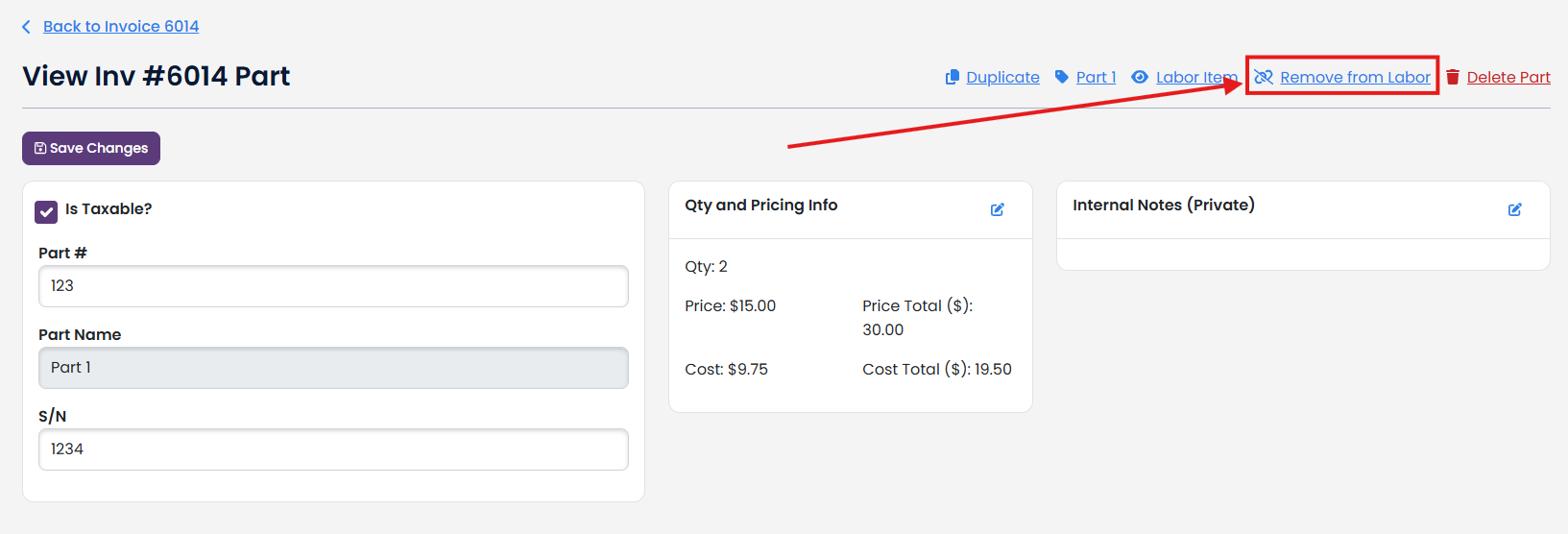
Click Remove this Part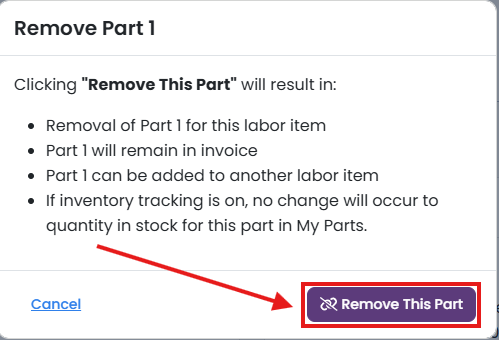
The part will no longer show up in the Parts tab in that Invoice Labor