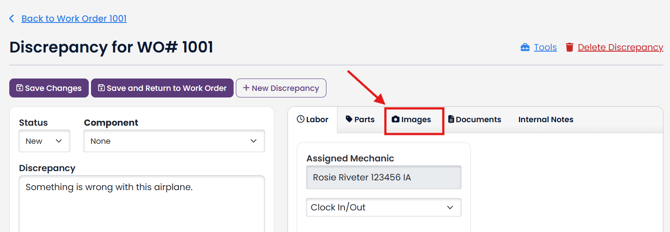
To add an image to a discrepancy, view the discrepancy.
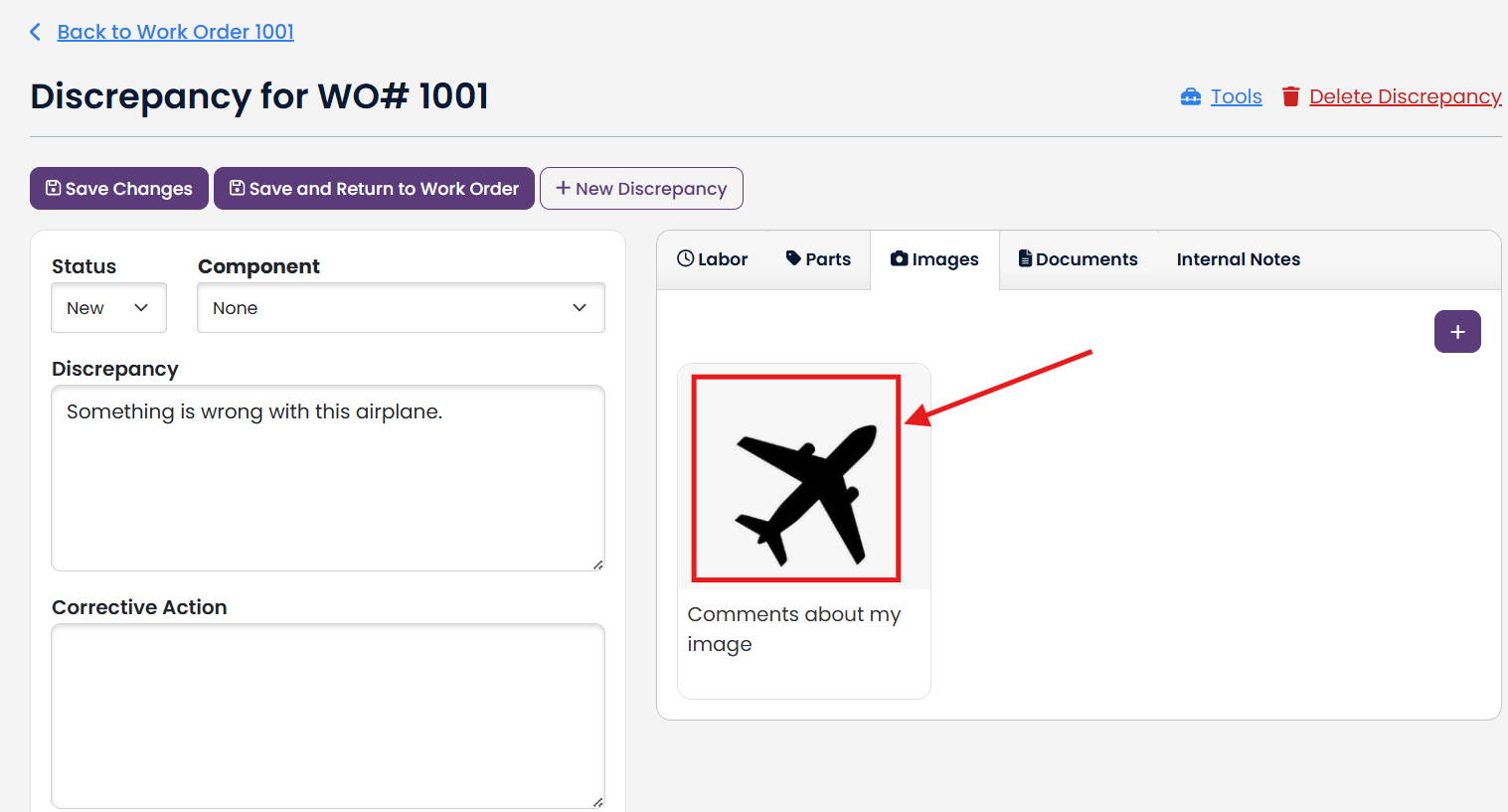
Click the Images tab
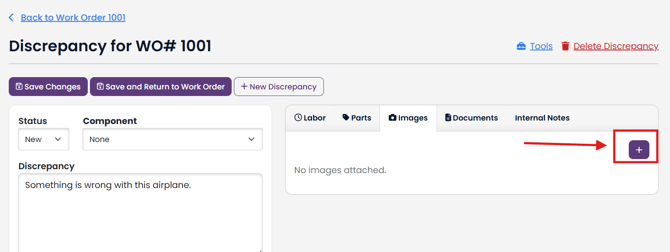
Click the Plus (+) button
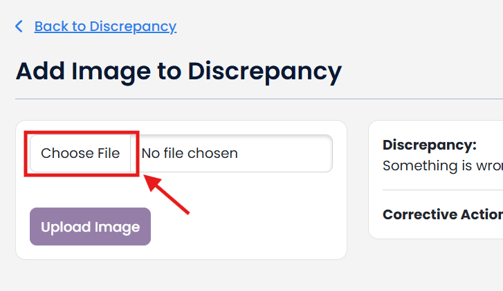
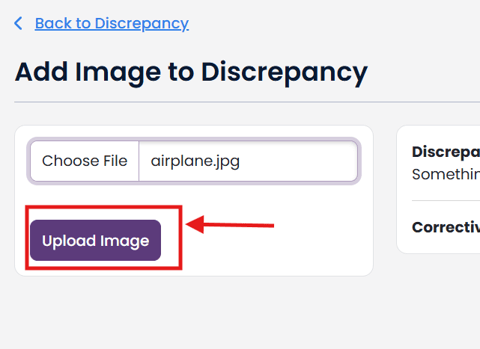
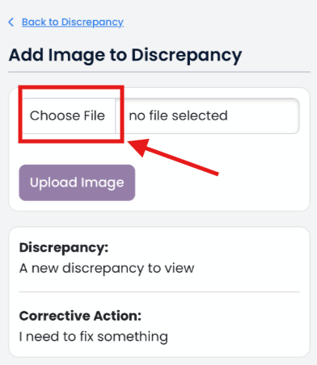
Click Choose File
Select the image file that you want to upload.
Types of image files allowed: jpg, jpeg, png, gif, bmp
Click Open
Click Upload Image button
Next, you can:
- Add comments to your image
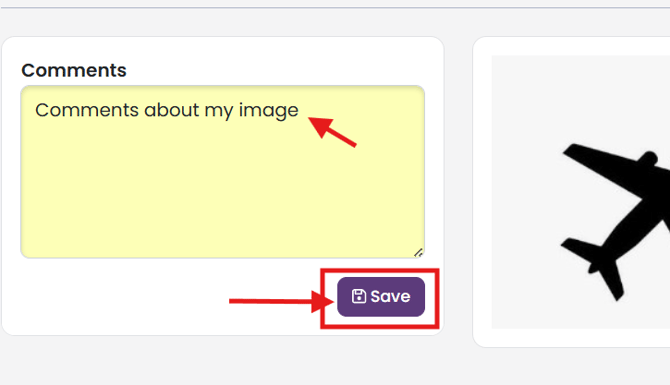
- Add another image

- Return to your discrepancy.

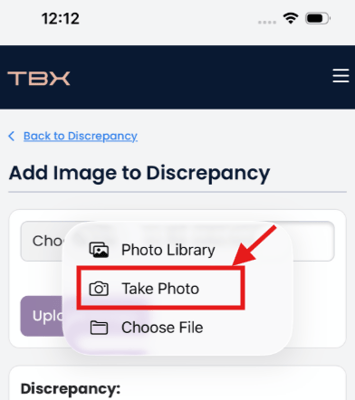
Some mobile device now will allow you to take a picture from the add image page.
To Edit your image, click on the image in the Images tab of your discrepancy.
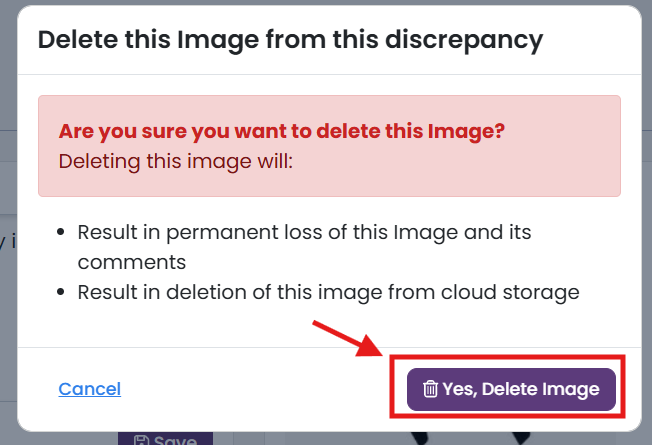
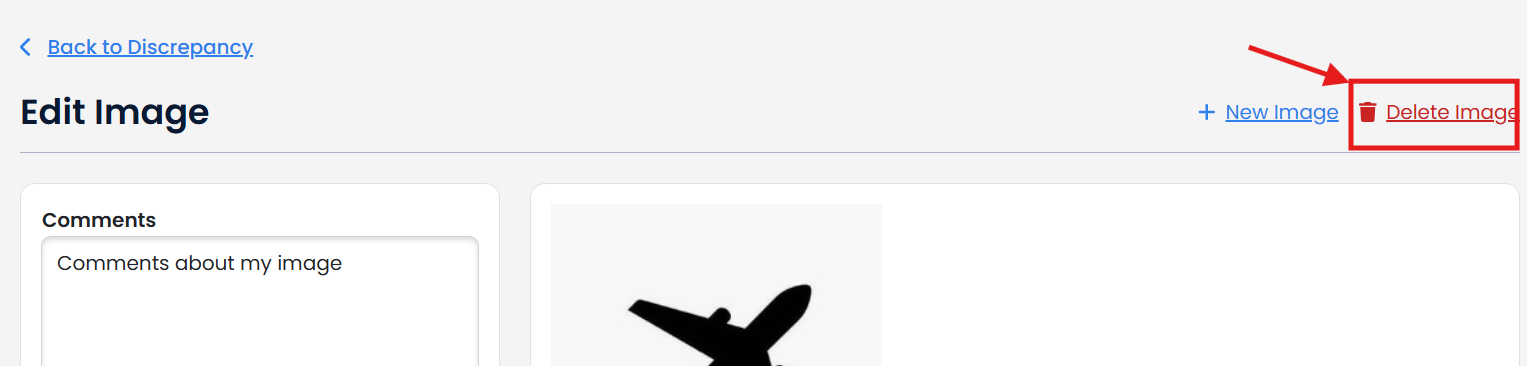
To Delete your image, click Delete Image
Click Yes, Delete Image button