
Please note:
- If the location of the engine and/or prop IS in the Aircraft Profile at the time a new AD Compliance Report is created, it will copy over to the AD Compliance Report
- If the location of the engine and prop is NOT in the Aircraft Profile or you did not create the AD Compliance Report from an Aircraft Profile, you will have to add the location by clicking on the edit
 icon (next to the engine or prop) in the AD Compliance Report
 - Engine and Prop locations will print on all AD Compliance Report Print templates only if the location has been added to the engine or propeller. If it hasn't been added to the engine or prop, it will not print.
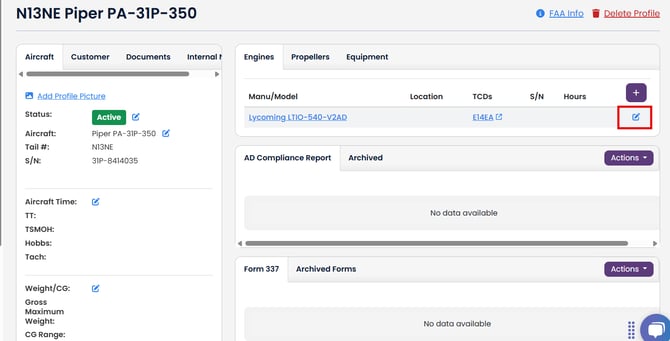
1. To add the location in the Aircraft Profile (recommended), edit the engine or prop by clicking on the blue edit  icon in Aircraft Profile engine or Propellers tab (on the right):
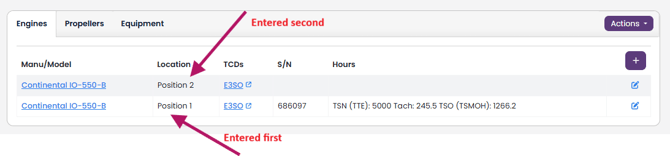
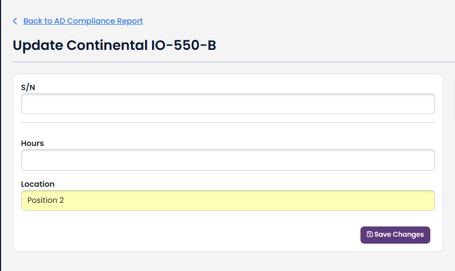
Add the location by typing in the appropriate location and click the "Save Changes" button. Please note, the locations will be displayed and printed in the reverse order that you enter them.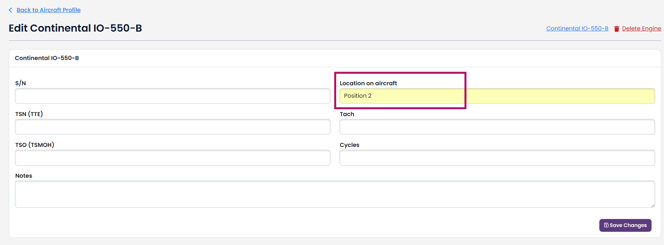
Please note, the locations will be displayed and printed in the reverse order that you enter them.
2. To add the engine/prop location directly in an AD Compliance Report, open your AD Report Prep page and then click the blue edit  icon next to the engine or propeller.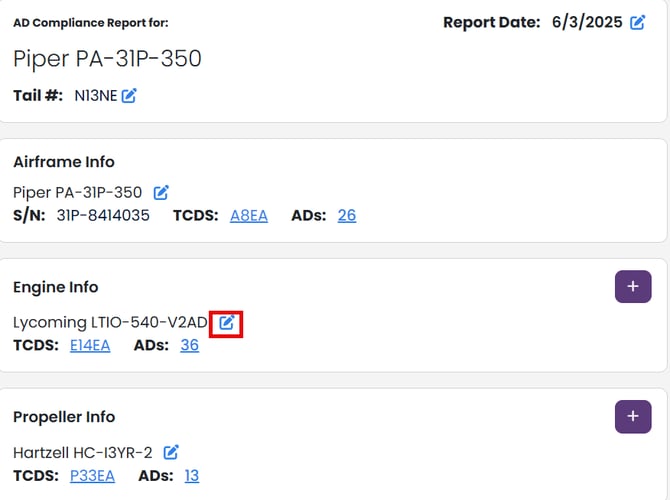
Update the engine/prop location and any other pertinent information and click "Save Changes"
When printing, you'll notice the location is now on the printed report. For example:
